
Appearance
Company Profile
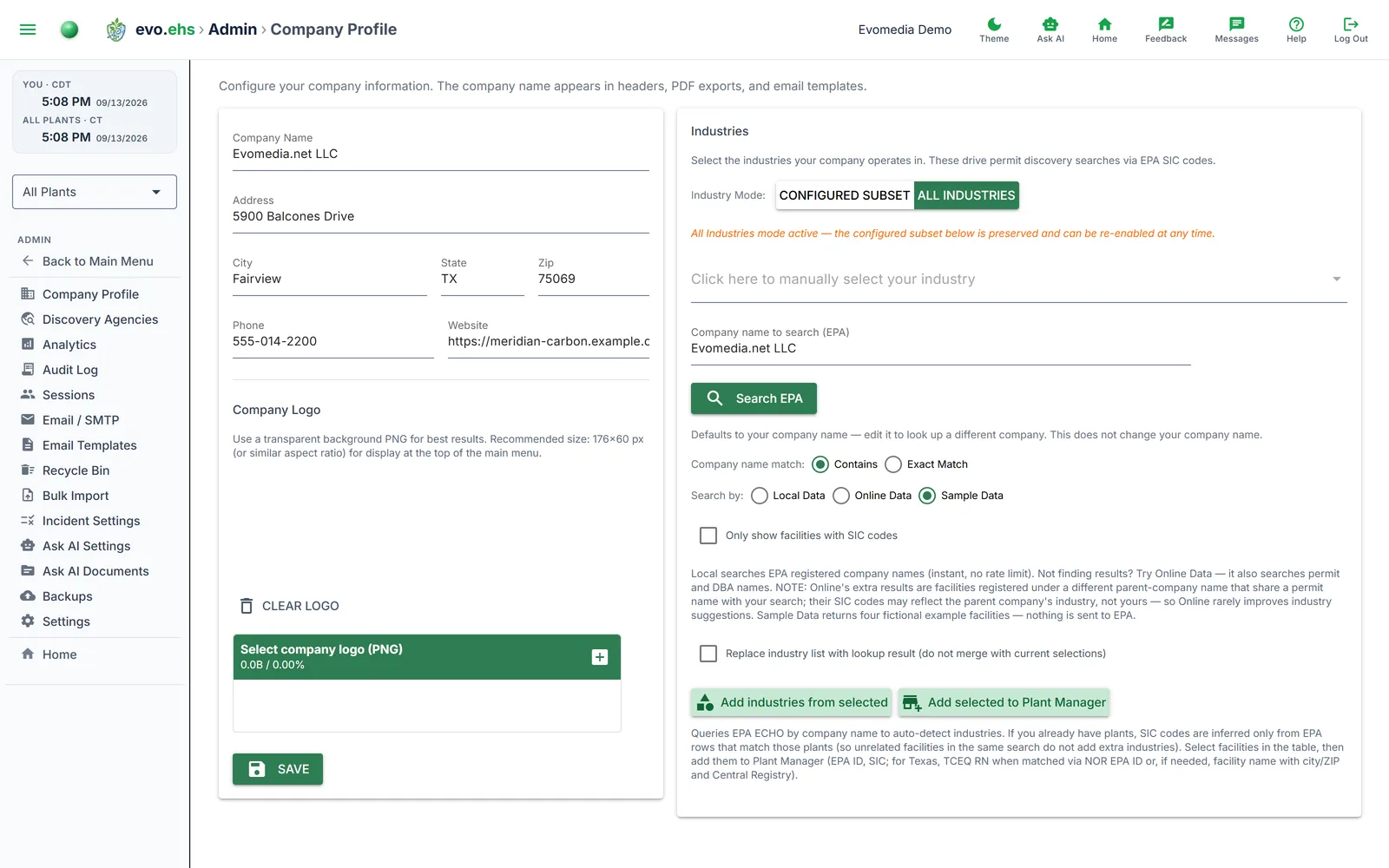 Configure your organization's identity and the industries it operates in.
Company Information
Set your Company Name, Address, City, State, Zip, Phone, and Website. The company name appears in the header, PDF exports, and email templates.
Your address may already be filled in
Checkout asks for a billing address when you subscribe, so those details are copied here for you — Address, City, State and Zip. Only empty fields are filled: anything you have already entered is left alone, and you can edit any of it. Changing it here does not change your billing address with Stripe; use Manage Billing for that.
Company Logo — upload a transparent-background PNG (recommended ~176×60px or a similar aspect ratio) to display at the top of the main menu. Use Clear Logo to remove it.
Click Save to apply your changes.
Industries
This section drives which EPA SIC codes Permit Discovery searches against.
Industry Mode — choose Configured Subset (only the industries you select) or All Industries.
Click here to manually select your industry — pick specific industries from a dropdown when using Configured Subset mode.
Company name to search (EPA) — defaults to your company name; edit it to look up a different company without changing your actual company name. Your last search term is remembered between visits. Match by Contains or Exact Match, and pick where to search:
- Local Data — EPA registered company names, instant and with no rate limit. The default, and the right choice almost always.
- Online Data — queries EPA live. Broader, because it also searches permit and DBA names, but the extra results are often facilities registered under a different parent company, so their industry codes may not be yours.
- Sample Data — four fictional example facilities. Nothing is sent to EPA. Use it to try the import without real facilities of your own; the guided setup selects it for you, it stays selected for as long as the sample company is the one saved in your profile, and you can switch away at any time.
Only show facilities with SIC codes — the checkbox under the Search by row, off by default. Tick it to drop facilities without an industry code from the results: they add nothing to the industry suggestions, and a broad Contains search on a common name returns plenty of them. If every result lacks a code, the search says so instead of showing an empty table.
Search EPA — the button directly below the search field (pressing Enter in the field works too). Queries EPA ECHO by company name to auto-detect industries. If you already have plants, SIC codes are inferred only from matching facilities so unrelated results don't add extra industries.
Add industries from selected / Add selected to Plant Manager — apply searched results to your industry list or import them directly into Plant Manager. Both buttons stay disabled until a search returns results. During the guided setup's plants step, a Click me pointer sits above the header checkbox that selects every result, its arrow pointing down at the box, and the numbered pointer names the button to press next; both stay up until you add plants in this visit, even if the workspace already had some. If a selected facility matches a plant in the Recycle Bin, that plant is restored with its records intact rather than duplicated.
Each imported plant is tagged with its own industries and NAICS code from its EPA record, not the company's whole list — so a group that owns a carbon-black plant, a refinery and a warehouse gets three plants scoped correctly rather than three copies of the same scope. Permit Discovery uses a plant's own industries when it has them.
An import only ever assigns industries you already have. If a facility looks like an industry that is not in your company list, the plant is still imported and you are told which industry was left off — add it above, or set Industry Selection to All Industries if the company genuinely spans many. Restoring a plant from the Recycle Bin fills only fields that are empty, so a plant you have already tagged by hand keeps its own industries.