
Appearance
Ask AI Setup
Available on every plan
Ask AI is not gated by subscription plan. Access is controlled by section access on the Ask AI section, which defaults to tenant administrators and the Ask AI role.
Turning on Ask AI for your site takes two things: giving people the role, and giving the site an AI model to answer with. Both are done from the admin area — there is nothing to install.
Settings live under Admin → Ask AI Settings (/admin/ai-settings).
Before you start
If the page says "Ask AI is not configured on this server", the AI service hasn't been enabled for your deployment. That's an operator-level change, not something you can turn on from here — contact whoever runs your evo.ehs installation.
1. Give people the Ask AI role
Ask AI is off for every user by default. It is not part of any existing role — a brand-new user, even an experienced one, sees no Ask AI button until you grant it.
In User Manager, either:
- assign the Ask AI role to the user, or
- grant the Ask AI section to a role they already have, via Access Roles.
Tenant admins have it automatically.
Answers are further limited by the rest of the user's access. Someone without User Manager access gets questions about users declined; the Ask AI page tells them what their answers cover when their access is partial.
2. Choose the AI model
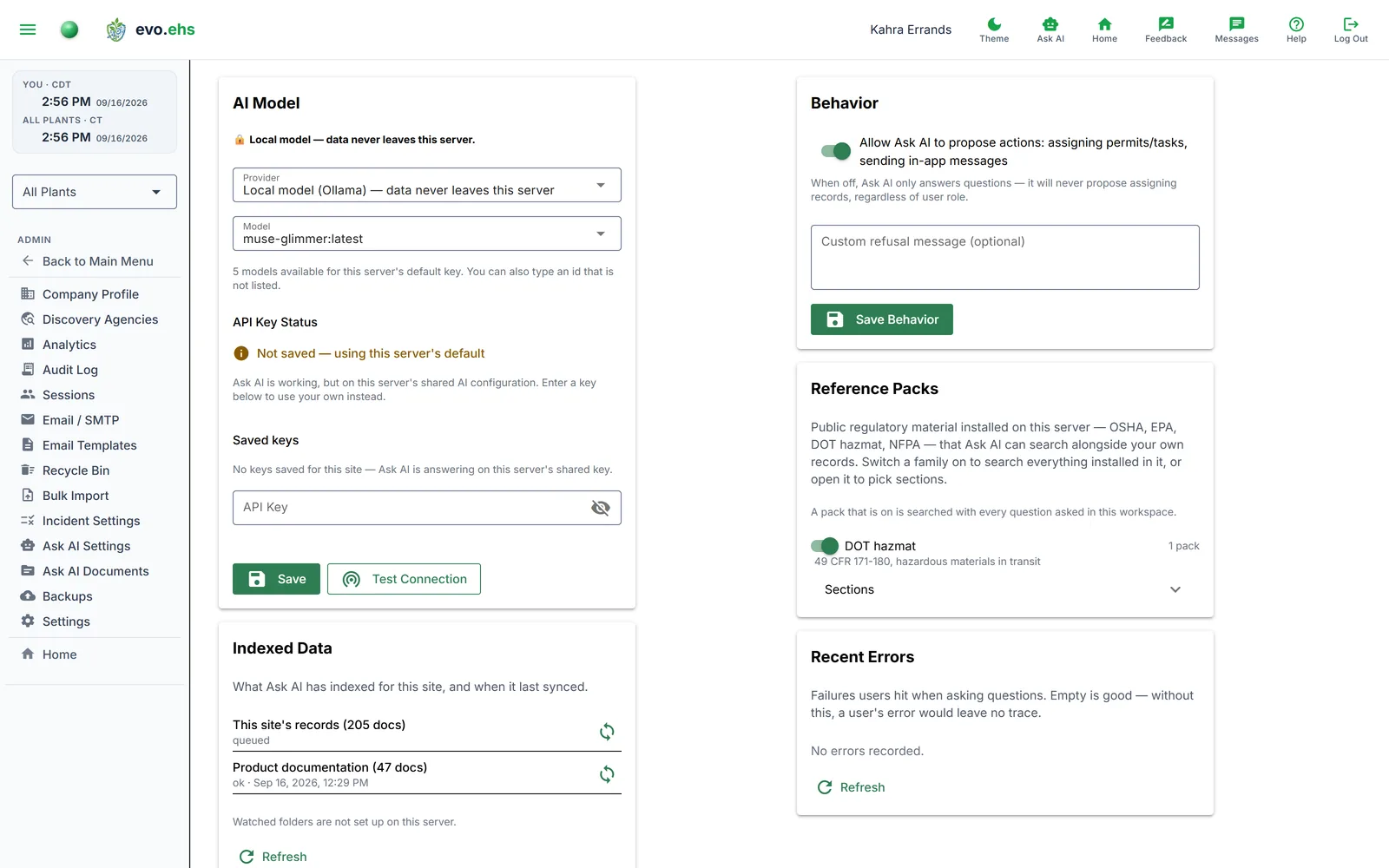
The AI Model card picks which AI service answers your site's questions.
| Provider | Notes |
|---|---|
| Google Gemini | Cloud — questions and retrieved records leave this server |
| Anthropic | Cloud — questions and retrieved records leave this server |
| OpenAI | Cloud — questions and retrieved records leave this server |
| Local model (Ollama) | Runs on this server; no data leaves it, and no key is needed |
Enter the model name and, for a cloud provider, your own API key from that provider. The key is stored encrypted by the AI service — evo.ehs keeps only a masked form of it, and it is never shown again after saving.
Cloud providers send your data off this server
Choosing a cloud provider asks you to confirm a data-residency notice before the key is saved. Answering a question sends both the question and the site records retrieved to answer it — permit, incident, task, and other indexed data — to that provider under your key. Choose the local model if your data must stay on this server.
Reading the API key status
API Key Status tells you which key your site is actually using, without having to click anything:
| Status | Meaning |
|---|---|
| Saved for this site | Your own key is in use. Leave the key field blank to keep it. |
| Not saved — using this server's default | Ask AI works, but on the server's shared AI configuration rather than your key. |
| Not saved — Ask AI cannot answer | No site key, and this site may not use the server default. Questions will fail until you enter a key. |
Test Connection confirms the key and model actually work before anyone relies on them. It asks the model for one word, because a provider can still list a model it has stopped answering with — so a model that looks available is only proven usable by using it. Remove deletes the site's key.
For the same reason, saving a model the provider will not answer with is refused rather than accepted, and the message repeats what the provider said. Where a provider retires a model it usually names its replacement, so the fix is generally to save the model named in that message.
3. Check the data is indexed
The Indexed Data card lists each dataset the AI can draw on, with a document count, its last sync status, and when it finished — shown in your own local time. There are two:
- This site's records — your permits, incidents, tasks, chemicals, training, events, EPA compliance, plants and users.
- Product documentation — this documentation site, which is how Ask AI answers questions about how evo.ehs works.
Your site's records are indexed automatically on a schedule — there is no setup step. A brand-new site takes a little while for its first sync to run and complete, so Ask AI may have nothing to answer from for a short period after the site is created. The sync button beside a dataset forces an immediate re-index if you don't want to wait, or if you've just imported a large batch of records.
4. Set the behavior (optional)
The Behavior card has two settings:
Allow Ask AI to propose actions: assigning permits/tasks, sending in-app messages — on by default. When off, Ask AI only answers questions and will never propose an assignment or draft a message, regardless of anyone's role; a user who asks it to message someone is told that messaging from Ask AI is switched off. This is a site-wide kill switch that sits above the per-user permission checks. Assigning still needs the matching manager access; sending a message needs none beyond being able to use Chat, and every send is recorded in the audit log under the sender's name.
Custom refusal message — what users see when a question doesn't match anything in your records. The default already names your datasets; override it if you'd rather point people somewhere specific.
Both save with Save Behavior.
5. Reference packs (optional)
Ask AI answers from your own records. Reference packs add public regulatory material next to them — OSHA (29 CFR, interpretation letters, directives, publications), EPA guidance by topic section, DOT hazmat (49 CFR 171–180) and NFPA public material — so a question like "how often must hazmat employees be retrained?" can be answered from the regulation as well as from what you have recorded.
Packs are installed on the server once, by the operator (see below). Once installed, they appear on this page under Reference Packs, grouped by family:
- Switch a family on to offer everything installed in it to the people who ask. Switching is instant — nothing is downloaded or indexed for your workspace.
- Open "Sections" under a family to switch individual packs; EPA is one pack per topic (RMP, EPCRA, RCRA, TRI, …), so a workspace can keep just the sections it works with.
- A pack shown greyed out is installed but cannot be used by this workspace yet — it was embedded with a different model than the one your workspace reads — and the tooltip says so.
Switching a pack on does not change anyone's answers by itself. A pack that is on appears as a checkbox in an Include row under the Ask AI question box, unticked, and is searched only for questions where the asker ticks it. Their ticks stay set for them in this workspace, so a conversation about OSHA is not a tick per question. This is deliberate: searching every enabled pack on every question changed retrieval for every existing question in the workspace, and could regress answers that worked the day before. Offering leaves your workspace's answers untouched until somebody reaches for the regulation.
Answers that draw on a pack say so in the sources line — 5 sources · 3,531 ms · from OSHA — and cite it like any other source. When a question finds nothing in the workspace's records and a pack is on offer but unticked, the refusal names it and how to ask.
If the card says no reference packs are installed, none have been installed on the server yet; that is an operator action, not a workspace one.
Installing packs on the server (Global Admin)
The operator installs packs for the whole server under Global Admin → Ask AI → Content packs. The card lists the available packs by family with their document counts and text size:
- Install (or Install all for a family) queues a job on the Ask AI service that fetches the pack and indexes it once for every workspace. It takes minutes per pack; the row shows installing and updates itself until it reads installed, or failed with the reason.
- Installing switches nothing on. Workspace admins turn a pack on under Admin → Ask AI Settings, as above.
- Remove deletes a pack and its index from the server. It is refused while any workspace still has the pack on; the dialog names them, and removing anyway clears their switches.
If the card reports that the pack catalog could not be read, the Ask AI service is missing the credential it fetches the catalog with; that is set on the Ask AI host, not here.
Conversation memory
When conversation memory is enabled for the deployment, the AI service remembers each user's Ask AI exchanges — per user, per site — and can draw on a user's own earlier conversations when answering their later questions (see the user guide). Points that matter to an administrator:
- Scope: memory is isolated per (site, user). One user's remembered history is never used for, or visible to, anyone else.
- Where it lives: with the AI service on the deployment, alongside the site's indexed data. It is not part of the evo.ehs database.
- Cloud models see it when used: remembered turns that contribute to an answer travel to the configured model as context — under a cloud provider, off this server — exactly like the site records retrieved for the same answer. The data-residency warning above applies to memory too.
- Turning it on or off is an operator-level action on the AI service (a deployment setting) — not a control on this settings page. Contact whoever runs your evo.ehs installation.
- Erasing one person's remembered history needs no administrator at all: the clear button on each user's own Ask AI page wipes their saved conversation and their remembered history together, behind a two-step confirmation. See Clearing your history. Admins still have the document-scoped sweep in Ask AI Documents for the case where one source has to come back out of everyone's history.
Your workspace's usage
Admin Settings → Ask AI shows how much this workspace has asked: the number of questions, the total characters submitted, and the tokens those questions used — and how long answers take, as an average over every question since timing began and the slowest single answer.
Usage counting itself stores only how many and how long — never question text. Question text is kept in two places only: the per-user conversation memory described above (when the deployment has it enabled), and the Recent Errors card below, which records the question that triggered a failure.
Counting has a start date
Usage counting began when it was switched on for the deployment. Questions asked before then aren't included, and can't be.
If your workspace is answering on the server's shared key rather than your own, its model is chosen by the operator — the Model box only applies once you save a key of your own. Saving a model change without one is refused, with a message explaining why.
Troubleshooting
The Recent Errors card records Ask AI failures with the question that triggered them, which is the fastest way to tell a configuration problem from a data one.
| Symptom | Likely cause |
|---|---|
| No Ask AI button in the header | User lacks the Ask AI role or section |
| "Ask AI is not configured on this server" | AI service not enabled for the deployment |
| Key status shows Ask AI cannot answer | No site key, and no permission to use the server default |
| Answers say records don't cover something you know exists | Dataset hasn't finished its first sync — check Indexed Data |
| Questions about users or other areas declined | The asking user's role can't see that section |
| Can't change the Model | This workspace uses the server's shared key; save your own API key first |
| "cannot answer" when saving or testing a model | The provider has retired that model or will not answer with it — save the replacement it names |
| Usage shows nothing | No questions since counting began, or Ask AI is unreachable |