
Appearance
Email / SMTP
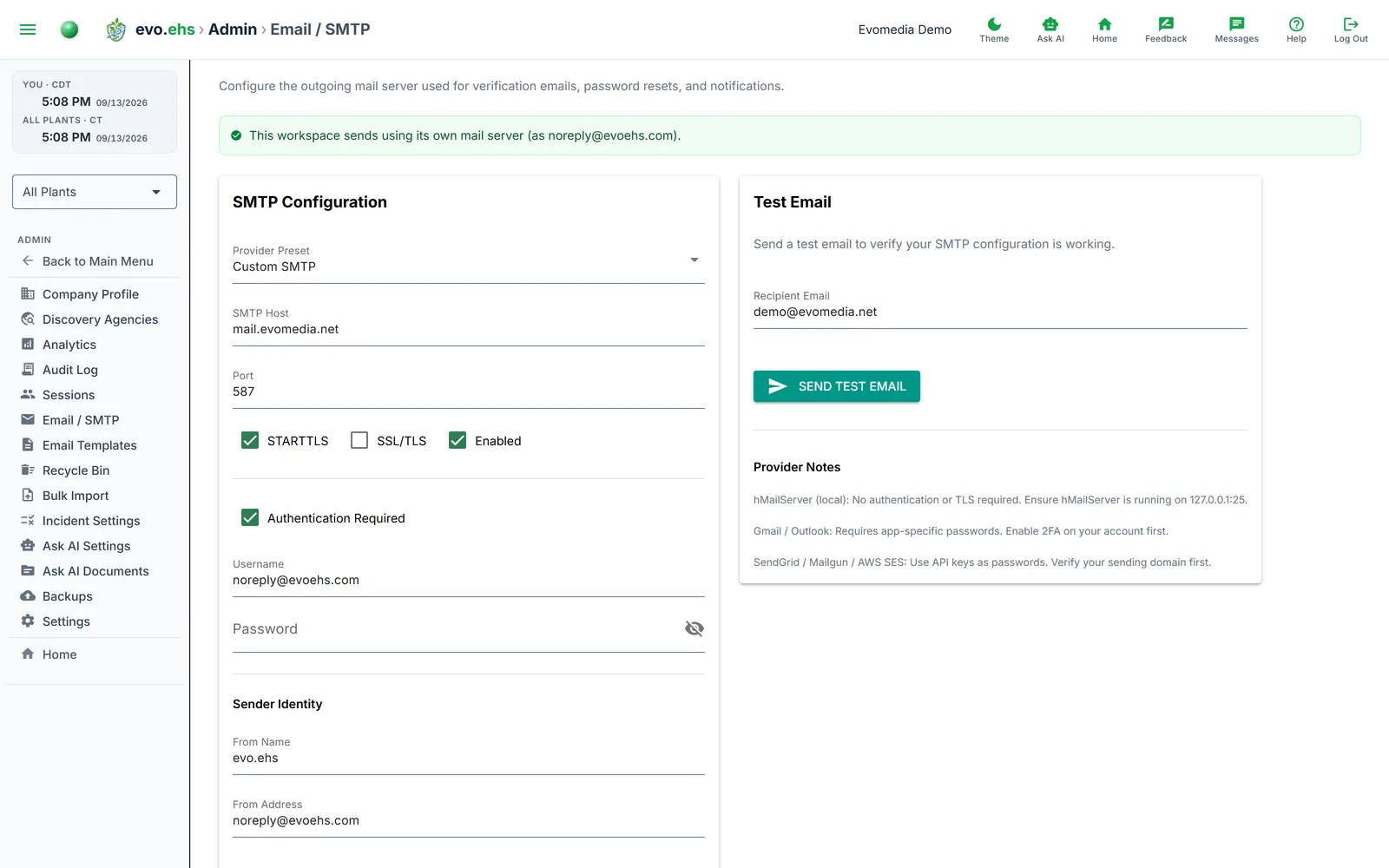 Configure the outgoing mail server used for verification emails, password resets, and notifications.
Which mail server your workspace uses
A banner at the top of the page always states what is in force right now:
| Banner | Meaning |
|---|---|
| All outgoing email is switched off | The operator has stopped mail for the whole platform. Nothing sent from anywhere arrives, including password resets, invites and verification. The settings on this page are still saved, just not used. |
| Sends using its own mail server | This workspace has its own active configuration, and mail goes out under your From Address. |
| Sends using the platform default | This workspace has no active configuration of its own, so it inherits the platform's. Mail still goes out — under the platform's sender address, not yours. |
| No mail server is configured | Neither this workspace nor the platform has one. Nothing can be sent: password resets, invites and alerts will all fail. |
The first of those outranks the rest: while the platform switch is off, the page shows it instead of saying which configuration would have won, because that is not the answer to "why did nothing arrive".
You only need your own configuration if you want mail to come from your own address. A workspace left unconfigured still sends.
Because of that inheritance, deleting your configuration or clearing Enabled does not switch email off — it hands sending back to the platform default. There is no in-product way to disable outgoing mail for a workspace entirely; ask your platform administrator if you need that.
The platform-wide switch is an operator control, not a workspace one, and it is deliberately blunt: it stops transactional mail as well as notifications, because it exists for emergencies such as a mail storm or a restore replaying old events. Every suppressed send is logged with the reason, so a switched-off platform never looks like a broken mail server.
SMTP Configuration
Start by selecting a Provider Preset — hMailServer (local), Gmail, Outlook / Office 365, SendGrid, AWS SES, Mailgun, or Custom SMTP. Selecting a preset auto-fills the host, port, TLS, and authentication settings.
| Field | Description |
|---|---|
| SMTP Host | Mail server hostname |
| Port | SMTP port (1–65535) |
| STARTTLS | Enable STARTTLS encryption |
| SSL/TLS | Enable SSL/TLS encryption |
| Enabled | Toggle outgoing email on/off |
| Auth Required | Show username/password fields |
| Username / Password | SMTP credentials (when auth is required) |
| From Name | Display name on outgoing emails |
| From Address | Sender email address |
Click Save Settings to persist, then Verify to test the connection.
Provider notes
- Gmail / Outlook — requires app-specific passwords; enable 2FA first.
- SendGrid / Mailgun / AWS SES — use API keys as the password; verify your sending domain first.
- hMailServer — no authentication or TLS needed; runs on 127.0.0.1:25.
Test Email
Enter a recipient address and click Send Test Email to confirm end-to-end delivery.
How SMTP passwords are stored
SMTP passwords are encrypted at rest with a key the operator sets in the environment as APP_ENCRYPTION_KEY (a Fernet key). When that variable is unset the app derives a key from SECRET_KEY instead, which works but ties the two together: rotating the session secret would make every stored password unreadable. Production runs with the explicit key.
Setting or rotating the key
- Generate a key inside the app container:
python -c "from cryptography.fernet import Fernet; print(Fernet.generate_key().decode())" - Re-encrypt the stored passwords under it, still inside the container, with the new key in the environment for that one command:
APP_ENCRYPTION_KEY=<key> python scripts/reencrypt_secrets.pyshows what would change; add--applyto write. The old key is derived fromSECRET_KEYunless you pass--old-key. - Put
APP_ENCRYPTION_KEY=<key>in the operator.envand restart the app.
Run the re-encrypt before any SECRET_KEY rotation. The command is safe to run twice: rows already under the current key are skipped.