
Appearance
Admin Settings
 Workspace-wide configuration that applies to all users in the tenant.
UI Theme
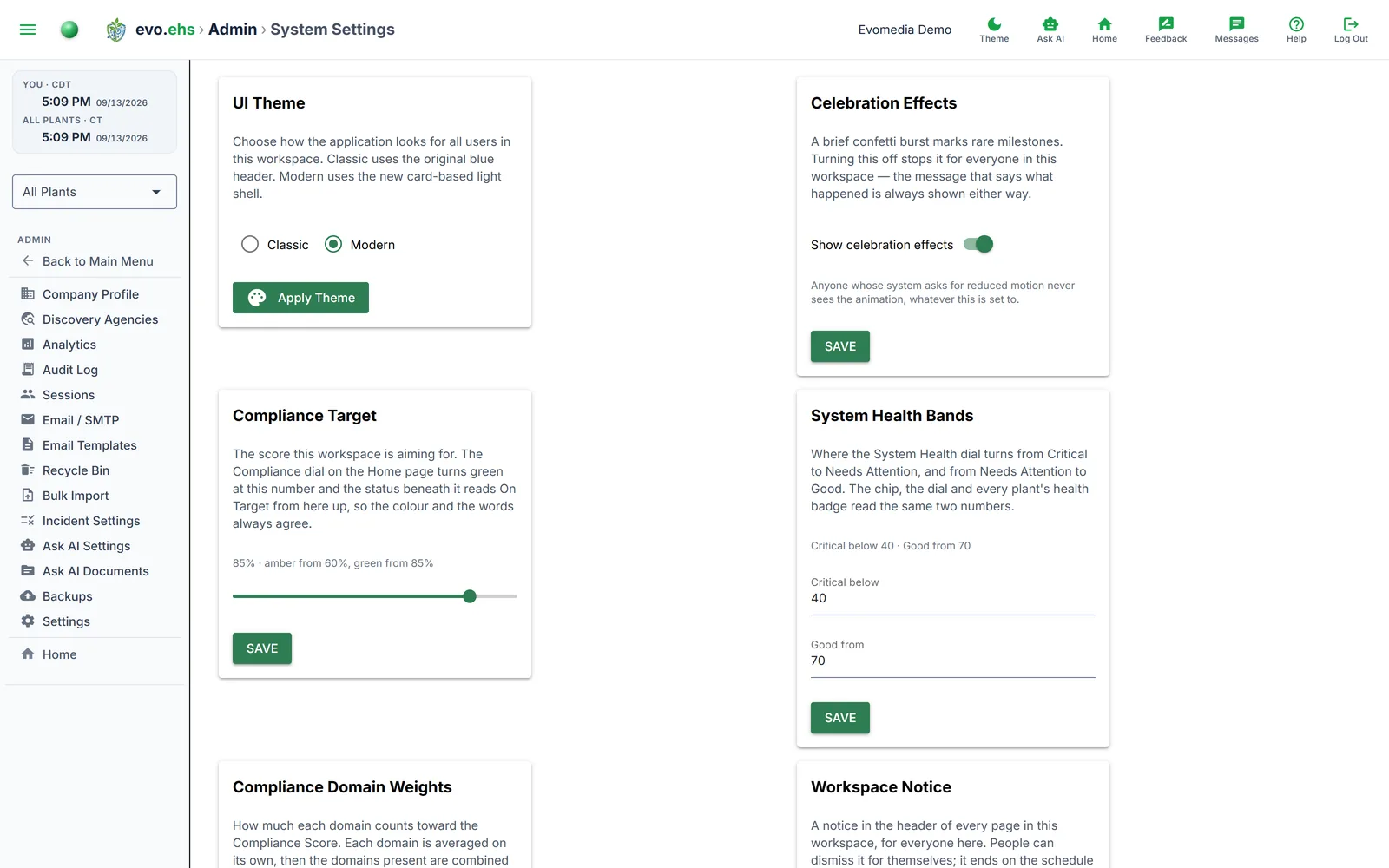
Choose between Classic (table-focused) and Modern (card-based) layouts. The change applies to all users after clicking Apply Theme.
Celebration Effects
Show celebration effects turns on or off any animation or sounds, for everyone in this workspace.
A brief confetti burst marks rare milestones. The message saying what happened is always shown, whether or not the animation plays, and anyone whose system asks for reduced motion never sees it regardless.
Each person can also turn it off just for themselves, in User Settings → Play Animation and/or Sounds. Both have to be on for the effect to play. Changes take effect on the next page opened.
Compliance Target
The score this workspace is aiming for, from 11% to 100%. It sets what the Compliance card on the Home page means:
- the dial turns green at this number
- the status beneath it reads On Target from here up, and Below Target underneath
- the caption under the dial says
Target: N%
All three come from this one setting, so the colour and the words always agree. Amber runs from ten points below the target down to 60%, whichever is lower, and red covers everything under that.
System Health Bands
Where the System Health dial turns from Critical to Needs Attention, and from Needs Attention to Good. The defaults are Critical below 40 and Good from 70. Enter the two numbers and save; at least ten points are kept between them so the middle band always exists, and the pair reported back is the one the dial will use. The chip under the dial, the dial's colour zones and every plant's health badge on the Home dashboard read the same pair, so they cannot disagree with each other.
Workspace Notice
A notice in the header of every page in this workspace, for everyone here. Write the text, set when it starts and ends in UTC (leave the end blank for a notice that runs until you end it), and Publish. It appears as an info notice, which people can dismiss for themselves. The card lists what is live or scheduled, each with End now. A workspace notice is never an alert; alerts in the header come from the system's own rules, such as the OSHA reporting countdown, or from the operator.
Compliance Domain Weights
How much each domain counts toward the Compliance Score. Each domain is averaged on its own, then the domains present are combined by these shares. All domains weigh 1 by default. Set a domain to 0 to stop it moving the number without hiding it: it is still scored and still listed on the Compliance Score page. Weights run from 0 to 10, and a set that switches every domain off is not saved as such; the score falls back to equal weights rather than dividing by nothing.
A target of 100% is allowed and means what it says: only a perfect score shows green. Bear in mind that a high target makes the dial amber most of the time — that is the dial telling the truth about a demanding bar, not a fault.
Workspaces that never set a target use 95%.
Dialog Background Blur
Control how much the page blurs behind modal dialogs in the Modern theme. Slide from 0 (no blur) to 6 (strong blur) and use Preview to see the effect before saving.
Format Override
Choose whether each user picks their own date/time format (Per User) or force a specific format for everyone (Forced). When forced, select the date format (MM/DD/YYYY or YYYY/MM/DD) and time format (12-hour or 24-hour).
Reset Dev Environment
Development only
This wipes all permits, environmental data, events, analytics, sessions, actions, audit logs, and backups — then re-imports from EPA/TCEQ and seeds with random data. Use only in development or demo environments.