
Appearance
Getting Started
Logging In
Navigate to the login page and enter your workspace (your company's short name — ask your administrator if you're unsure), email, and password. If you arrived through your company's own login link, the workspace is already filled in for you. If you're signing in for the first time with a temporary password, you'll be prompted to set a new one.
New passwords must be at least 12 characters, with no special-character requirements — see Password requirements.
On your first login (and again whenever the agreement is updated), you'll be asked to review and accept the End User License Agreement before continuing — type your full name, check the agreement box, and click I Agree — Continue.
You can also sign in with a passkey (Windows Hello, a security key, or your device's biometric unlock) instead of a password, once you've registered one from Settings. On the login page, click Sign in with a Passkey and follow your browser's prompt.
Other links on the login page:
- Forgot Password? / Forgot Username? — self-service recovery by email.
- Create Account — self-registration: creates your own workspace with you as its administrator. See Creating Your Account for the fields each step asks for.
Guided Setup
Once your workspace exists, a step-by-step guide walks you through to a working permit list. It appears as a small card in the corner of the screen with directions for the page you're on, and hands you to the next page when you're ready:
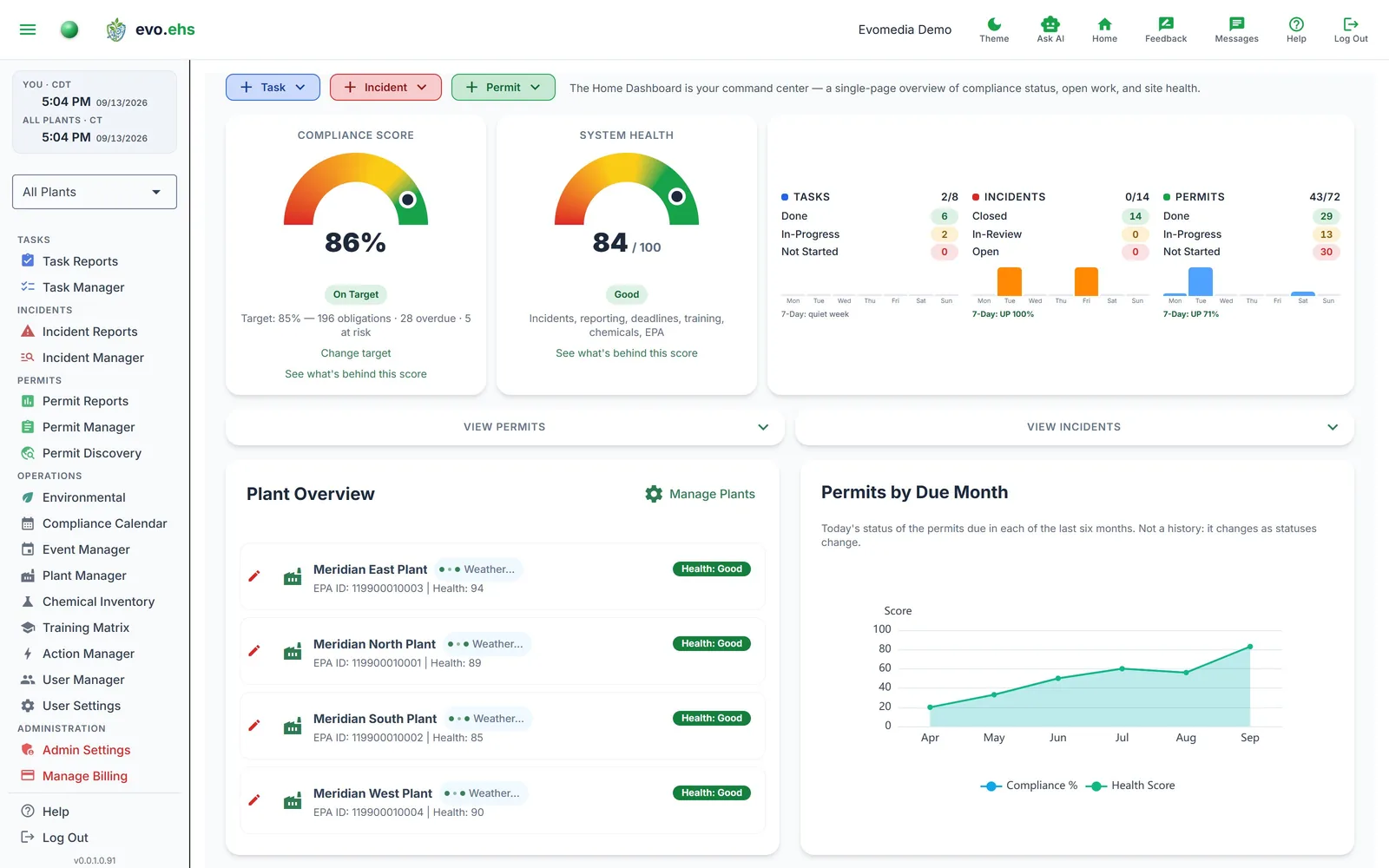
- Home Dashboard — your command center.
- Company Profile — company details, logo, and an EPA search that finds your facilities and adds them to Plant Manager.
- Permit Discovery — pick a plant and Discover; permits already on file with EPA and the state agencies are pulled in for you.
- Permit Manager — the imported permits, with statuses and due dates.
Just looking around? From the Company Profile step onward, each step has a one-click Fill with sample data button that uses a fictional company — safe to experiment with.
Sign-up itself has no card and no sample option: use a real email address you can receive mail at. It verifies your account, and it's where password resets are sent — the form says so under the email field.
A reminder appears when you finish the guide while any of it is still there — whether this run used the sample button or an earlier one did: the sample company, its facilities and any permits discovered against them are still in your workspace, and nothing marks them as samples. Replace the details in Company Profile, and delete the sample facilities and permits from Plant Manager and Permit Manager, before you rely on the workspace. Each item in the reminder shows the path to it through the left menu, in the menu's own icons, and the last step of each path opens that page.
Using your own data? Follow the same steps and type your real details instead.
Text too small? The Font size buttons (A− A+) at the card's bottom-left grow or shrink it. It's the same size the +Task / +Incident / +Permit create buttons use — change it in either place and both follow — and it's remembered for you across sessions and devices.
Go Back on the left of the card returns to the previous step — the guide moves both ways, so a step you clicked past is one click away rather than a restart. It isn't shown on the first step.
Hide it any time with the X on the card — one click. Re-enable it or start over from the beginning in User Settings → Interface → Guided Setup.
Can't spot the pointer? Each time you arrive at a step, and each time a step points at a new button, the rest of the page dims and blurs for five seconds. The card and the green Click here markers, with the controls they point at, stay clear. It clears the moment you click anywhere or press Escape — typing into a field doesn't dismiss it — and it never blocks anything: the page stays usable underneath, and the button is pressed straight through it.
Sending feedback
The Feedback button in the header opens a short form. Pick what it is — Feedback, Defect or Feature Request — describe it, and send.
Your workspace name, your user name, the page you were on and the build number are attached automatically, so you don't have to look any of it up. The form shows you exactly what it's sending before you press Send.
Report it while you're looking at it
The page you're on is captured, so raising a defect from the screen where it happened gives us more to work with than describing it later.
Navigation
- Sidebar — the left-hand sidebar lists every section you have access to. Which sections appear depends on your assigned role(s).
- Header — shows your company name, the current section, and quick-access icons for dark mode, Ask AI, Home, Chat, Help, and Log Out. The Ask AI icon only appears if you have access to that section.
- Plant Filter — a dropdown near the top of the sidebar scopes data across the system to a single plant, or to all plants at once.
Dates and times
Every date and time field works two ways, and you can mix them: type the value, or click the calendar icon at the end of the field and pick it. Typing is punctuated as you go, so 20260911 becomes 2026-09-11. Fields that carry a time show a clock beside the calendar, and both write into the same box — whatever you pick is exactly what the field holds, and what the app saves.
The format is always YYYY-MM-DD, with HH:MM on a 24-hour clock where a time is wanted. It does not change with your display preferences; only how dates are shown back to you elsewhere does.
On a phone
evo.ehs works in a phone browser. The wide tables change shape rather than shrinking:
- Permit Manager, Task Manager and User Manager show one card per row. Every field is present, stacked and labelled, and the toggles, dropdowns and date pickers work exactly as they do on a desktop. Sorting is the one thing you lose — the column headers the sort controls live in are hidden at this width. Search still works.
- Other tables drop their lower-priority columns instead, keeping enough to identify a row. Turn the phone to landscape, or open the page on a larger screen, to see the full set.
The layout switches automatically at 760 pixels wide; there is no setting to change.
Roles
Your role determines which sections you can access. Roles are assigned by an administrator from User Manager. Typical roles include Admin, Tenant Admin, Corporate, Plant Manager, EHS Supervisor, EHS Manager, EHS Staff, Environmental, and Viewer — Viewer is read-only.