
Appearance
Creating Your Account
Create Account is how you get your own workspace: a three-step wizard, then a link arrives by email to confirm your address. Creating a workspace is what makes you its administrator, and administrator access is what unlocks the Company Profile and User Manager.
Already been invited?
If a colleague added you to an existing workspace, you don't need to create one. You'll receive an email with a link — follow Verifying your email and setting a password below, then sign in.
Create Account (your own workspace)
This is the path that creates a workspace and makes you its administrator. It's a three-step wizard and takes a couple of minutes.
Click Create Account on the evoehs.com landing page — it appears in the page header and again in the main call-to-action. You can also reach it from Create Account at the bottom of the sign-in page, or go straight to evoehs.com/register.
Step 1: Workspace Basics
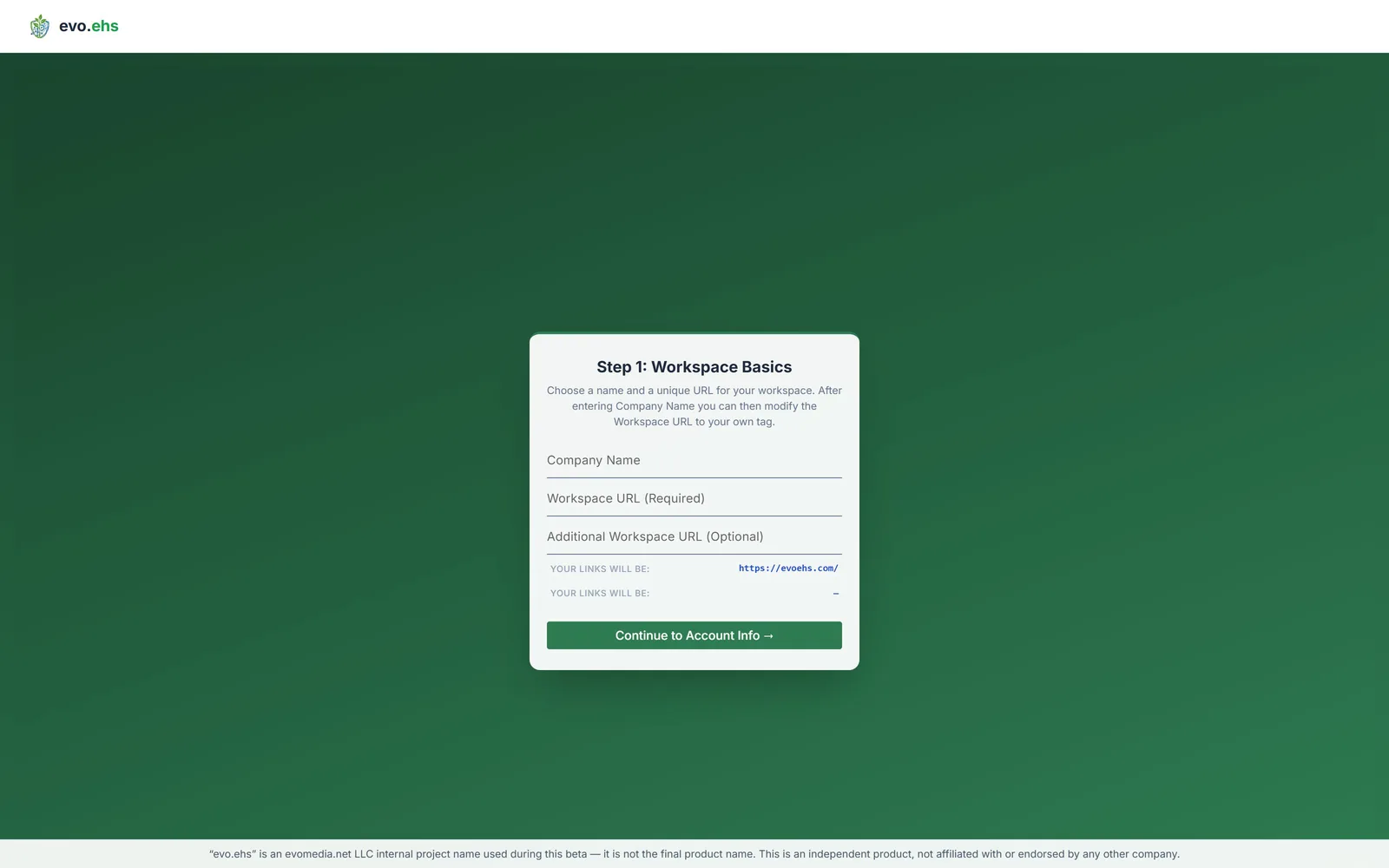
| Field | Notes |
|---|---|
| Company Name | Your organization's name |
| Workspace URL | The web address for your workspace |
As you type your company name, a suggested Workspace URL is filled in for you. You can edit it. The page tells you live whether the address is available, and shows the full link you'll use — for example www.evoehs.com/your-company.
You may also set an optional second workspace address if you want an alternative link to the same workspace.
Choose your URL carefully
This becomes the permanent address your team uses to reach the workspace. If the URL is already taken you'll be asked to choose another.
Step 2: Admin Account
Create the account that will have full control over the workspace.
| Field | Notes |
|---|---|
| First Name | Required — appears in the header, on exported PDFs, and in the emails the system sends you |
| Last Name | Required |
| Email Address | Required — how the system reaches you, and how you sign in |
| Phone | Optional |
| Create Password / Confirm Password | Required — at least 12 characters. The rules appear under the field; see Password requirements |
This account becomes the workspace administrator. It's the account that can set up the Company Profile, add plants, and invite the rest of your team, so use an address you'll keep access to.
Step 3: Choose Your Plan
Choose the plan that fits your facilities. Plans differ by how many user seats they include — every plan has the same features, including Ask AI.
Every card offers Monthly or Yearly billing; the yearly option shows what it saves.
You will not be charged
evo.ehs is in beta. Choosing a plan sets your seat and feature limits only — no card details are asked for, nothing is billed, and there is nothing to cancel. Prices appear on the cards so you know what the plan will cost later, and they are subject to change.
You can change your plan afterwards from Manage Billing.
Finish
Click Complete Workspace Setup. evo.ehs then:
- creates your workspace,
- creates your administrator account,
- sets up the default roles, access permissions and agency data for your workspace, and
- emails you a link to confirm your address.
Confirm your email
You'll land on a Check your email screen naming the address the link went to. Open the link and your workspace is ready.
- Verify Email in the message is the sign-in. Click it and you land on your Home Dashboard, on whatever device you opened it from — there is no password prompt in between. The link works once and expires in 48 hours.
The link works for 48 hours. You do not set a new password — the one you chose during signup is the one you keep.
Nothing arrived?
Check your spam folder, then use Resend the email on the Check your email screen. Until you confirm, signing in tells you the address still needs verifying rather than letting you through.
Why the extra step: without it, anyone could create a workspace using an address that isn't theirs.
Verifying your email and setting a password
(Applies to invited users — people who do not yet have a password. If you created your own workspace you already chose one; see Confirm your email above.)
- Open the link in your email. It confirms your address and activates your account.
- Choose a password when prompted.
- Sign in at evoehs.com/login.
Every password field has a show/hide (eye) toggle if you want to check what you typed. If a sign-in attempt fails, only the password is cleared — your other entries stay put.
Setting up your Company Profile
Once you're signed in as an administrator, set up your company details. They appear in the application header, on PDF exports, and in email templates — so it's worth doing first.
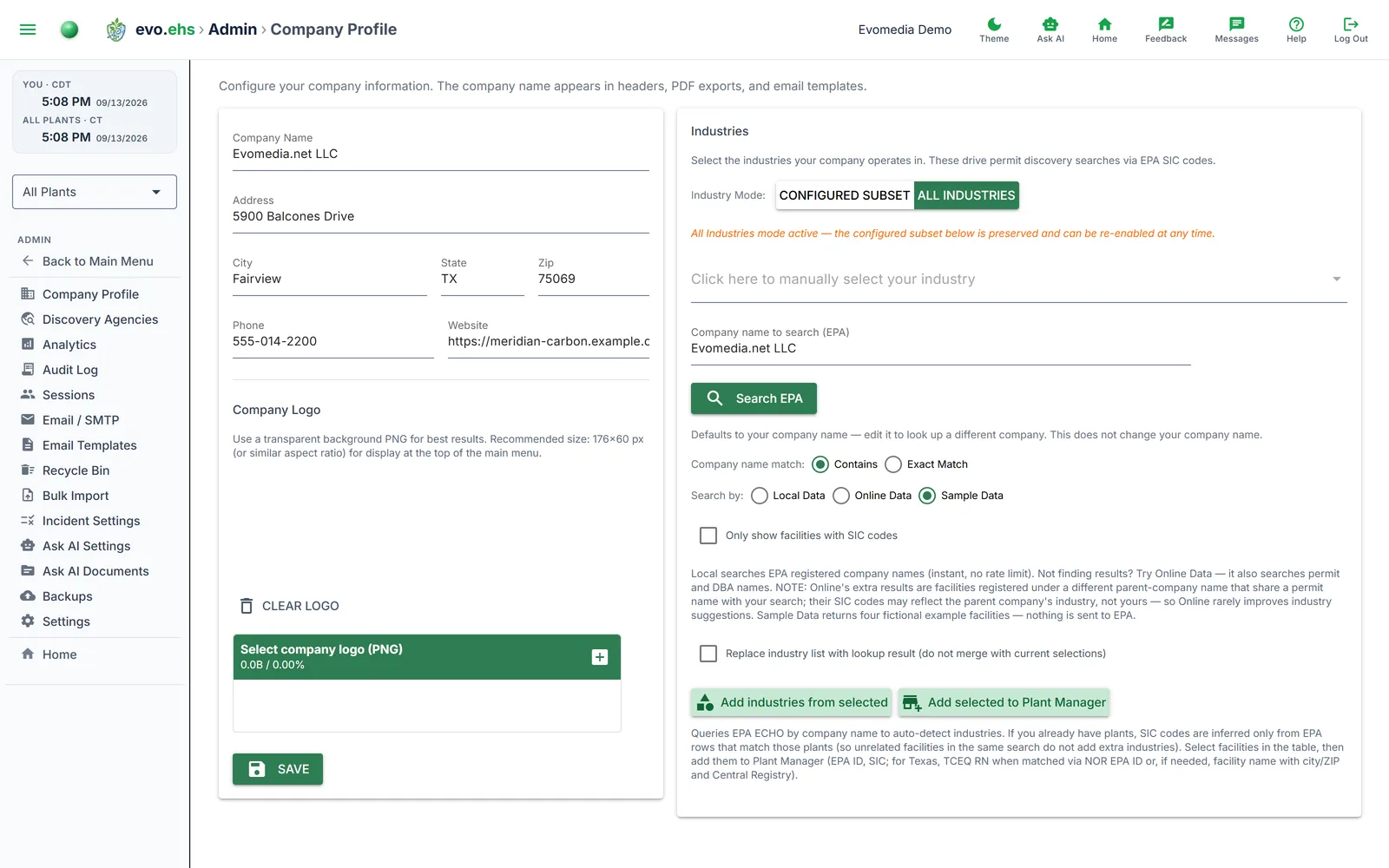
Go to Admin Settings → Company Profile.
Administrator access required
If you see "Access denied", your account isn't an administrator on this workspace. Ask your workspace administrator, or create your own workspace with Create Account.
Fill in your company details
| Field | Notes |
|---|---|
| Company Name | Shown in the header, PDF exports and email templates |
| Address, City, State, Zip | Your primary business address |
| Phone | Main contact number |
| Website | Your company's web address |
Add your company logo
Under Company Logo, upload your logo. It appears throughout the application and on generated documents. Until you upload one, the area shows "No logo selected".
Choose your industries
Under Industries, tell evo.ehs what your organization does. These drive permit discovery searches via EPA SIC codes, so they're worth getting right.
You can either pick them yourself — "Click here to manually select your industry" — or let evo.ehs work them out from EPA records:
- Company name to search (EPA) defaults to your company name. Edit it to look up a different company; this does not change your company name.
- Choose Contains or Exact Match, and search Local Data (instant, no rate limit) or Online Data (also searches permit and DBA names).
- Click Search EPA, then Add industries from selected.
Matching facilities can also be sent straight to Plant Manager with Add selected to Plant Manager, which saves re-typing your plants.
Save
Click Save. Your details take effect immediately.
What to do next
With your workspace created and your company profile filled in:
- Add your plants — most features are organized around plants, so add them before anything else.
- Invite your team — add users and give them roles matching their responsibilities.
- Find your permits — discover permits already on file with EPA and state agencies.
Troubleshooting
My account link expired. The link in the confirmation email is valid for 48 hours. Use Resend the email on the Check your email screen for a new one.
I never received the email. Check your spam folder, then use Resend the email. If you mistyped your address at signup, sign up again with the right one.
"That workspace URL is already registered." Someone is already using that address. Choose a different Workspace URL and continue.
"Too many wrong codes. Request a new one." — the six-digit identity code allows five wrong entries, then it is retired. Press Send Code for a fresh one; the count starts over.
"Too many sign-in attempts." After several wrong passwords, sign-in pauses for a few minutes for that address and for your connection. The pause is the same whether or not the address is registered. Wait it out, or use Forgot Password?.
"Too many requests from this connection." The forgot-password, forgot-username and resend-email forms send a limited number of emails per connection every few minutes. Check your inbox and spam folder for the one already sent, then try again later.
I signed in but can't edit anything. You most likely have a view-only (viewer) account. Editing, user management and Company Profile need higher access — ask your workspace administrator to change your role.