
Appearance
User Manager
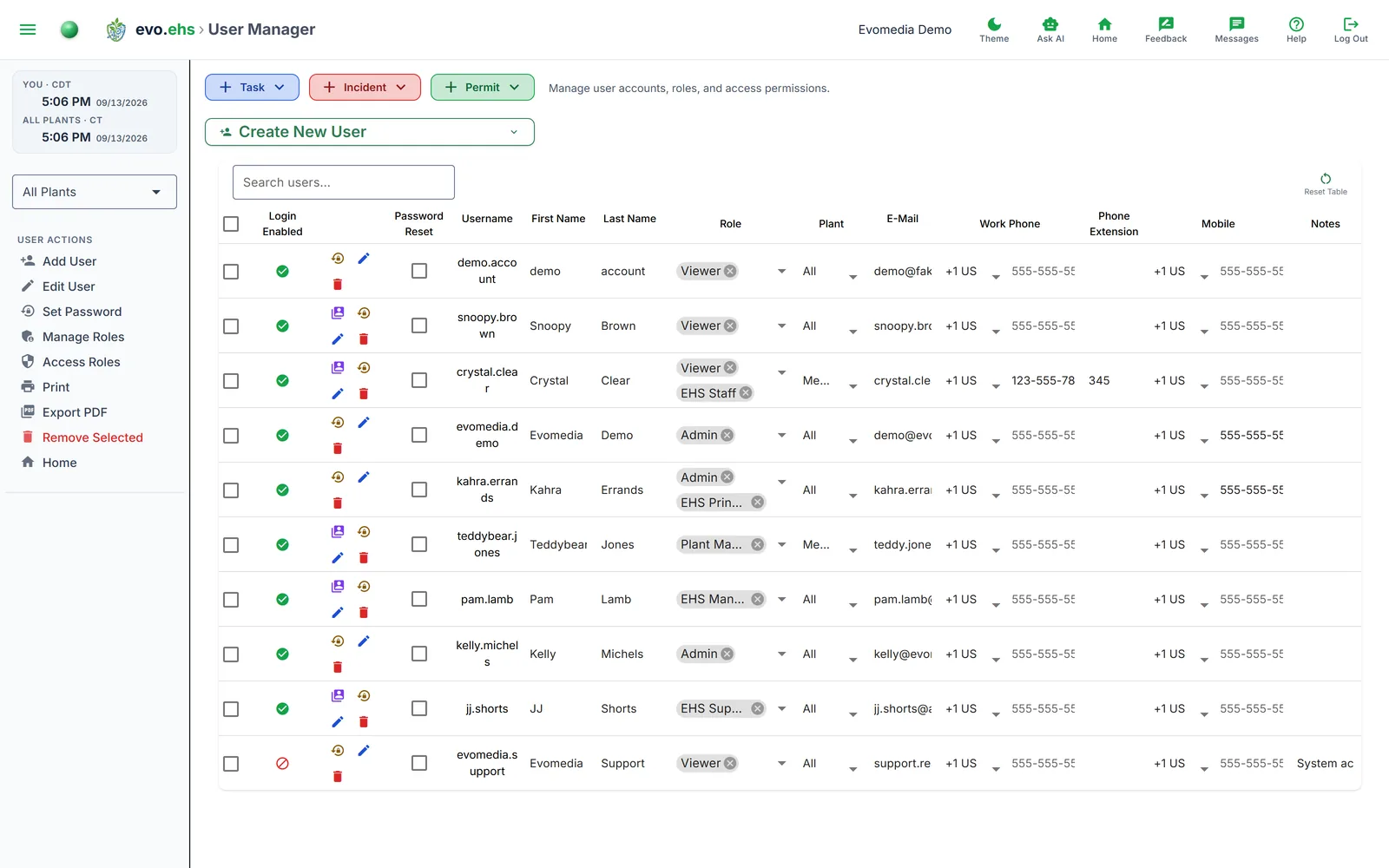 Manage user accounts, roles, and access permissions.
Adding a User
Expand Create New User and fill in first name, last name, email (all required), roles, plant assignment, phone numbers, and notes. Click Add User to create the account. The user receives an invitation email with a link to set their password.
The User Table
Each row shows login status, password reset flag, username (auto-generated from first + last name), name, roles, plant, email, phone numbers, and notes. Most columns are inline-editable.
Login Enabled Toggle
- Enabling login on an invited user activates the account, generates a temporary password, and sends a welcome email.
- Disabling login sets the account to disabled status.
Service Accounts
A login that is not a person: the demo login, the read-only support account Evomedia uses to look at a workspace with you, an integration. Tick Service account on the edit form and the account stays out of every people answer, so "who works here?" in Ask AI names your staff and not your logins. Everything else about the account is unchanged.
Per-Row Actions
- Assume User — sign in as this user to see their view (admin only, active non-admin users only).
- Reset Password — set a new temporary password; the user must change it on next login.
- Edit — open the full edit dialog.
- Delete — soft-delete the account.
Manage Roles
Open Manage Roles from the sidebar to add, rename, or remove custom roles. Default roles include Admin, Corporate, Plant Manager, EHS Supervisor, EHS Manager, EHS Staff, and Viewer.
Access Roles
Open Access Roles from the sidebar to control which roles can access each section of the application. A matrix grid shows sections as rows and roles as columns — check or uncheck to grant or revoke access.
Exporting
- Print — opens a print-friendly view.
- Export PDF — downloads user data as a PDF.
On a phone
Each row becomes a labelled card below 760 pixels wide, so no column is hidden. See Getting Started.