
Appearance
Ask AI
Ask AI answers questions about your site's own data — permits, incidents, tasks, chemicals, training records, calendar events, EPA compliance, plant weather logs, and site users — in plain language, with the sources it used cited under every answer.
Who can use it
Access is by role, not by plan, and a new workspace has Ask AI on for every role — so it works from day one without anyone configuring it.
Opening it to everyone is safe because Ask AI only answers from what you can already reach: it builds its sources from your own section access. Someone who cannot open Incident Manager gets no incidents from Ask AI either. It widens the question, not the data.
An administrator can narrow it per workspace in Access Roles, or grant the dedicated Ask AI role to give one person access without also giving them a manager tier — see Ask AI Setup. If you don't see the robot icon, ask an administrator.
Open it with the robot icon in the header, between the dark-mode toggle and Home — available from any page. (Ask AI doesn't take up a navigation-menu slot.)
The header icon appears when your workspace's plan includes Ask AI and your role has access to the Ask AI section.
What it can answer
Ask AI only knows what your site has recorded in evo.ehs. Good questions look like:
- "What stage is incident INC-2026-0003 in?"
- "What's the status of TSK-2026-0031?", "Who has PRM-2026-0042?"
- "Which permits are from the EPA and what do they cover?"
- "What open tasks are assigned, and to whom?"
- "Walk me through the lifecycle of permit X."
Incidents, permits and tasks each carry a record number (INC-, PRM-, TSK-, then the year and a counter). Ask AI understands a question that names one, writes the number beside the title in its answers, and links it straight to the record.
It also answers questions about using evo.ehs itself, from this documentation — "What is Permit Discovery?", "How do I give someone the Ask AI role?" — with a link to the doc page it answered from. Product help is available to every Ask AI user, whatever their data access.
It also answers counting and statistics questions by computing the result live across all of your site's records:
- "How many permits are there?"
- "How many permits are done, and how many are still in progress?"
- "What's the average time from an incident being reported to closed?"
- "How many of our chemicals are flammable?"
- "How many training completions are expired?"
- "How much rain did each plant get in the last 7 days?"
- "Which users are tenant admins?"
- "Who has the most overdue tasks?"
It answers "what's on my plate?" with a briefing built straight from your records, the same ledger the Compliance Calendar shows, so it is instant and always matches the calendar:
- "What are the most important things to do this week?"
- "What should I focus on?", "What's due?", "What's overdue?"
The briefing lists, in this order: anything overdue, everything due in the next seven days (permits, permit tasks, tasks, incident actions), open incidents with how many corrective actions each still has outstanding, and what is on the calendar. Every line is a link to the record, and only the sections your access covers are included.
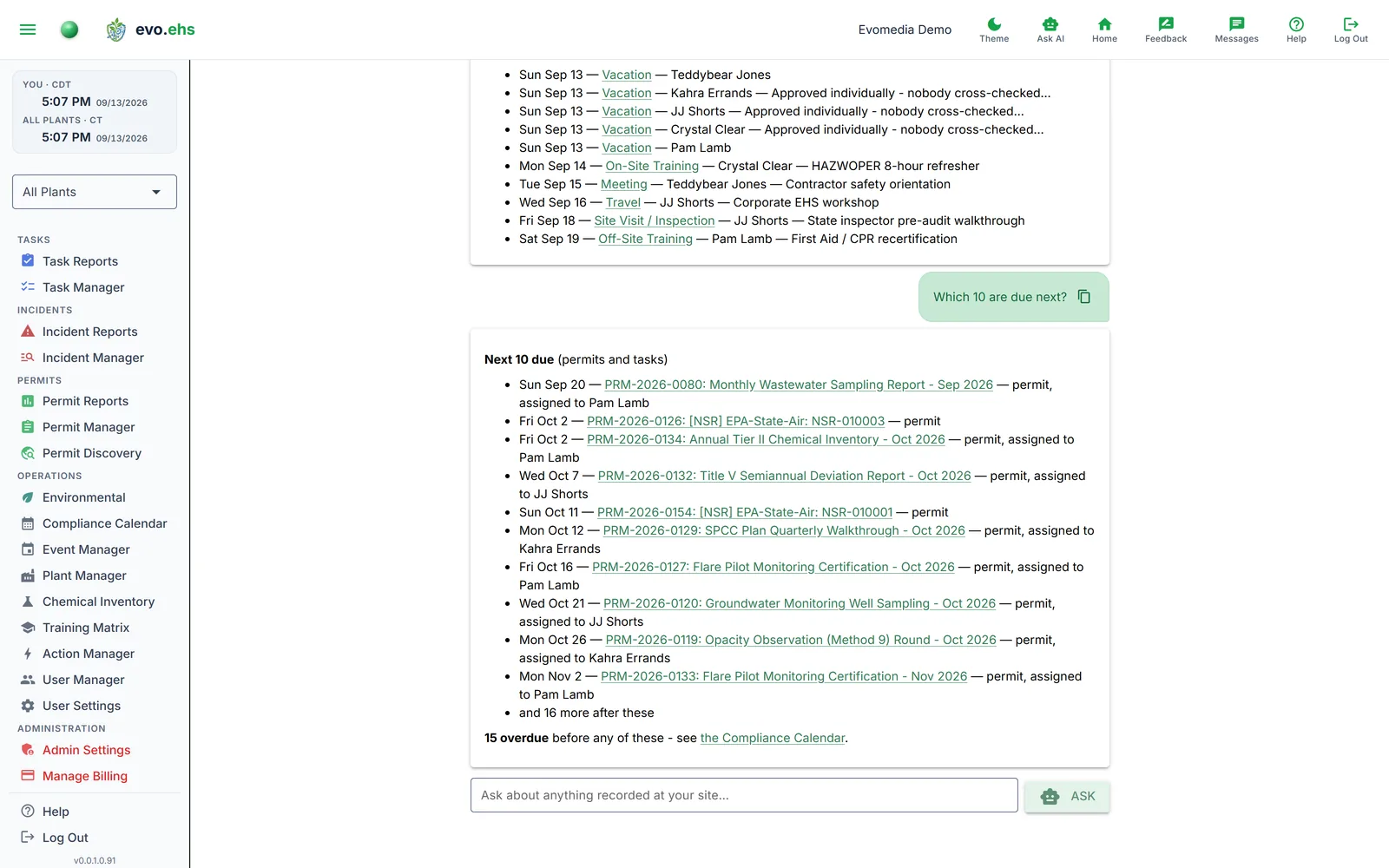
It answers "what's due next?" from the same records, for whatever is coming up — however far out that is, rather than only the next seven days:
- "Which 10 are due next?", "What's due next?", "What's coming up next?"
- "Which permits are due next?", "The next 5 tasks" — naming permits or tasks narrows the list to those
- Ask for a number and you get that many; otherwise you get ten
The list looks forward only, and never includes anything already Done — a completed obligation has nothing left to do on it, and its next cycle is dated when that cycle actually falls. If anything is overdue, the answer says how many and links to the Compliance Calendar rather than mixing late work in with what is coming.
A question that names a record type and asks for something else — "how many permits are done?" — still goes to the AI, which answers that precisely.
It answers date and time questions using your plants' own timezones — useful because permit deadlines, task cadences, and OSHA recordkeeping all depend on which timezone and which day a date falls on:
- "What time is it?" — the current local time at each of your plants, with each plant's timezone named.
- "What day is Nov 3rd?" — the weekday, and it says so explicitly when a date lands on a weekend (which decides whether a deadline is actionable).
- "How many days until Dec 25?" — a day count, forwards or back.
- "What's today's date?"
These are worked out directly from your site's data rather than sent to the AI model, so they come back instantly, add nothing to your API usage, and the arithmetic is always right. Dates can be written however you like — Nov 3rd, November 3, 2026, 2026-11-03, 11/3, or today / tomorrow / yesterday. A month and day with no year resolves to the nearest sensible one.
Records in answers are clickable, and each link opens that record rather than the page it lives on. A permit, task, incident, chemical or training course is scrolled into view and briefly highlighted; a plant's card is pulsed; a calendar event opens the calendar on the date the answer names.
Contact details are links too. An email address opens your mail app, and a phone number dials: on a phone, one tap; on a PC, through whatever handles calls there. Numbers are written the way a person writes them, +1 (123) 555-7890, with any extension kept as ext 345.
An answer does not have to spell a record's name for it to be a link. An incident identified only by when it happened — "our first incident was recorded on February 4, 2026 at 10:15:00" — links to that incident, as long as the day holds exactly one. When two incidents share a day, the date stays plain text rather than send you to the wrong one. An event is recognized the same way, by its type and date as the answer states them (e.g. "Site Visit / Inspection on 2026-04-14").
Answers appear as they are written — the first words show within a second or two, and the rest follows — rather than all at once after a wait. Links, formatting and the sources are added the moment the answer is complete.
Every answer shows its sources — expand them to see exactly what the answer came from. A card from a document shows the passage that was matched, with its relevance score. A card for a computed answer shows the live query and the rows it returned, so you can check the number against the records yourself. A card for conversation memory shows the earlier turns it remembered, dated, oldest first; it carries no relevance score, so none is shown.
When an answer drew on both your own records and a reference pack, the cards are grouped under Your workspace records and Reference packs, your own first. The two groups are listed separately rather than mixed together because their relevance scores are not measured on the same scale: each is ranked against the other passages from the same place, so a 0.5 from a pack and a 0.5 from your records do not mean the same thing and sorting them into one list would be misleading. Within a group the order is meaningful, best match first.
The same line shows how long it took, twice over: how long the search itself took, and how long you waited altogether — "10 sources · 217 ms retrieval · 6.1 s total · from DOT hazmat". An answer with no sources shows the times on their own.
Two numbers because they answer different questions. Retrieval is the search through your records and any ticked packs; it is normally a fraction of a second, and when an answer is slow this is rarely the reason. Total is the whole wait, including writing the answer and the network in between.
Expanding the sources shows the full breakdown, stage by stage — "planning 4,006 ms · retrieval 217 ms · writing 1,889 ms". Useful when an answer felt slow and you want to know which part was: they have different causes and different fixes, and one combined number hides which one you are looking at.
Narrowing a question to certain sources
If your workspace has uploaded documents with category labels — OSHA, EPA, your company's own material — a Search sources row appears above the question box:
Search sources: ☑ Site data ☑ EPA ☑ OSHA ☑ Acme Chemical ☑ Other
Every box starts checked, which means exactly what Ask AI does anyway: answers can draw on everything you have access to. Unchecking boxes narrows the next question — untick everything except OSHA and the answer draws only on your OSHA documents.
- Site data is everything your site has recorded in evo.ehs — permits, incidents, tasks, chemicals, and the rest. Product help is not affected by this row; questions about using evo.ehs itself always work.
- Each category is a label your admin gave uploaded documents. A Company label shows your company's actual name.
- Other covers uploaded documents nobody has labeled, and only appears if there are any.
If your workspace has no labeled documents, there is no row — nothing to narrow.
Including reference packs
If your admin has switched on reference packs — public regulatory material such as OSHA, EPA, DOT hazmat and NFPA — an Include row appears directly under the question box:
Include: ☐ OSHA ☐ EPA ☐ DOT hazmat ☐ NFPA
Every box starts unticked, and an unticked pack is not searched. Your answers keep coming from your own records exactly as before, until you reach for the regulation: tick OSHA and ask "how often must HAZWOPER workers be retrained?" and the answer draws on 29 CFR and OSHA's interpretation letters as well as on what you have recorded.
- One box per family. Ticking EPA searches every EPA section your admin has switched on; you do not pick sections here.
- Your ticks stay ticked for you, in this workspace, until you change them — a conversation about OSHA is not forty ticks of OSHA. They are yours alone: nobody else's questions are affected, and they do not follow you into another workspace.
- When an answer drew on a pack, the sources line says so: 5 sources · 180 ms retrieval · 3.5 s total · from OSHA. If you ticked something and that line does not name it, the pack had nothing on your question.
- If Ask AI finds nothing in your records and you have packs on offer that are not ticked, it tells you: "OSHA reference material is available — tick OSHA under the question box and ask again."
If no packs are switched on for your workspace, there is no row.
EPA compliance answers
Ask about compliance — "are we in compliance?" — and the answer reports each plant's standing per statute from the EPA data your Environmental page tracks. evo.ehs only relays what the agency returned; it never issues its own compliance verdict.
When the data shows significant non-compliance (or quarters in non-compliance), that line is highlighted in bold red, prefixed "According to the EPA data:", and the answer ends with a red note linking to the Environmental page so you can review the details and confirm official requirements and records with the issuing agency.
What it deliberately won't do
Ask AI is a data assistant, not a general chatbot:
- Questions unrelated to your site's data (general knowledge, creative writing, coding) are politely declined.
- If your data doesn't contain the answer, it says so instead of guessing.
- It only sees your own site's records — never another workspace's.
- It cannot send email, texts or phone calls, and it never contacts anyone without you pressing Send. It can send a colleague an in-app message when you ask it to — see Asking it to do things. Ask it to message, email, text or call someone anyway and it says so first, then gives you their contact details.
- People questions name people. "Who works here?" leaves out any login an admin has marked as a service account in User Manager: the demo login, the support account, an integration.
When it can't answer
There are two different reasons, and Ask AI tells you which one.
"I can't do that." You asked it to perform an action it does not have — send an email or a text, create or delete a record. It names the action you asked for, says it cannot, and points at what it can do. This is not something to rephrase: the answer will be the same however you word it.
"I couldn't answer that just now." Something failed between your question and the answer. The question stays in your history with that reply under it, so the conversation keeps its thread; ask again, and if it keeps happening, report it with the button under the reply.
"I couldn't find anything on that." It understood the question and searched, and did not find the answer. Rephrasing, or widening the sources at the top of the page, is worth trying.
This reply now tells you what it read and what came closest:
Searched your site's records and DOT hazmat reference material. The closest match was 49 CFR 174.86 (Maximum allowable operating speed), which wasn't close enough to answer from.
That one line is usually enough to tell which of two very different things happened. If the closest match is obviously unrelated to what you asked, the search went looking in the wrong place and rewording will help. If it is nearly right — the correct regulation, about the wrong thing — then the material was read properly and the answer you wanted is not in it.
The example above is the second kind. 49 CFR 174.86 really is the section about maximum speeds, and it really is the closest thing in the pack, but it sets rail speeds for molten metals. No amount of rephrasing produces a road speed limit for explosives, because that rule is not in 49 CFR at all. Knowing that in one line beats rewording the same question four times.
Ask AI will not tell you a topic isn't covered, only what it read and what came closest. It cannot reliably tell "this material says nothing about your question" from "I failed to find the part that does", and claiming the first when it means the second would send you away from an answer that was there.
Both end with a Report this question button. Use it whenever you expected an answer and didn't get one — that is the whole signal we have that something you can reasonably ask isn't covered yet.
The button opens the feedback form with your question already filled in, word for word, and files it as a defect. Add anything useful — what you were trying to find out, what you expected — and send. Nothing to re-type, and no menu to go hunting for, on a phone or anywhere else.
The button stays with that answer, so scrolling back to a question you gave up on earlier still lets you report it.
Asking it to do things
Ask AI can assign permits and tasks and send an in-app message — and those are the whole list. Everything else it does is answering; if you ask it to do something that is not on this page, it cannot, even when it understands you.
"Assign these permits to Kara". Nothing changes until you confirm:
- The AI only proposes — evo.ehs matches the records and the person against your site's real data, never trusting the AI's naming.
- If more than one user matches, you're asked which one you meant (A), B), ... with the last letter always Cancel).
- A confirmation card shows exactly who and what before anything is saved. The assignment is recorded under your name with a full audit trail, the same as doing it in the manager pages.
- You need the matching access: Permit Manager to assign permits, Task Manager for tasks.
Sending a message
"Message Kara and Pam that these three incidents need an update." Ask AI drafts the message and shows it to you before anything goes out:
- The people are matched against your site's users, the same way an assignee is — never a typed-in address, and never you. If a name matches more than one user, you're asked which one you meant (A), B), ... with the last letter always Cancel). Someone it cannot match is named, so you can say who you meant.
- The card shows who it is going to and the full text in a box you can edit. Nothing is sent until you press Send; Cancel throws the draft away.
- Each person gets it as a direct message from you in Chat / Messaging, with the usual in-app and email notifications (a muted conversation stays muted). The send is recorded in the audit log under your name.
- It is switched on by the same Ask AI actions setting as assigning, and needs no manager access: anyone who can use Chat can ask.
Email, texts and phone calls are different asks, and Ask AI does not make them. Ask it for the person's details instead: it links the phone number and the address so one tap reaches them.
Follow-up questions
Ask AI understands short follow-ups in context. After asking about an incident, "who is assigned to it?" works — the conversation context travels with your question.
It remembers your earlier conversations
Ask AI keeps a memory of your own exchanges — across conversations, not just within one. Ask about a permit today, and next week "when does the permit I asked about renew?" can find it; "what did I ask you last week?" is answerable at all. When remembered conversation contributes to an answer, it appears among the answer's sources like any other evidence, so you can see exactly what was drawn on.
The memory is yours alone: it is kept per user, per site. A colleague at your site has their own; other workspaces never see it. Declined questions add nothing an answer can draw on, and memory never widens what you can ask — off-topic questions are still refused.
Whether memory is on is a deployment-level choice; if your operator has it off, Ask AI answers only from the current conversation.
You can erase what Ask AI remembers about you whenever you like — see Clearing your history below. You do not need an administrator to do it.
Your conversation follows you
Leaving the page — checking a permit, say — and coming back keeps your conversation exactly where you left it. So does signing in somewhere else: your history is kept against you, not against the browser, so opening Ask AI on your phone shows the same conversation you left on your desk.
It is yours alone. Nobody else at your site can read it, and there is no administrator view of it — Ask AI is where you ask the questions you would rather think through before saying out loud, and that only works if it stays private.
Conversations are kept for 90 days, then deleted automatically. The times and the pack names are kept with each answer, so reopening an old conversation shows the same sources line it showed when you asked.
Clearing your history
The clear button (top right of the page) erases your Ask AI history and starts fresh. It clears both halves of what is kept about you:
- your saved conversation, on every browser you use, not just this one;
- what Ask AI remembers about your earlier questions, described above.
After it runs, Ask AI no longer knows what you asked it. Follow-ups like "what did I ask you last week?" have nothing to draw on until you build the history up again.
Because none of that comes back, the button asks twice before it does anything. The first prompt lists what is about to go; the second is a plain last chance to change your mind. Cancelling either one leaves everything untouched.
Clearing is yours to do. You do not need an administrator, and nobody else can clear your history for you.
Access
Ask AI is available to users with the Ask AI role (and tenant admins). Answers are also limited to the data sections your role can see — for example, without User Manager access, questions about users are declined; the page lists what your answers cover when your access is partial. Site administrators grant it per user in the User Manager: assign the Ask AI role, or grant the Ask AI section to any existing role via section access. See Ask AI Setup for the full admin walkthrough.
If the page reports that Ask AI is not configured, the AI service hasn't been enabled for your deployment yet — contact your administrator.