
Appearance
Incident Manager
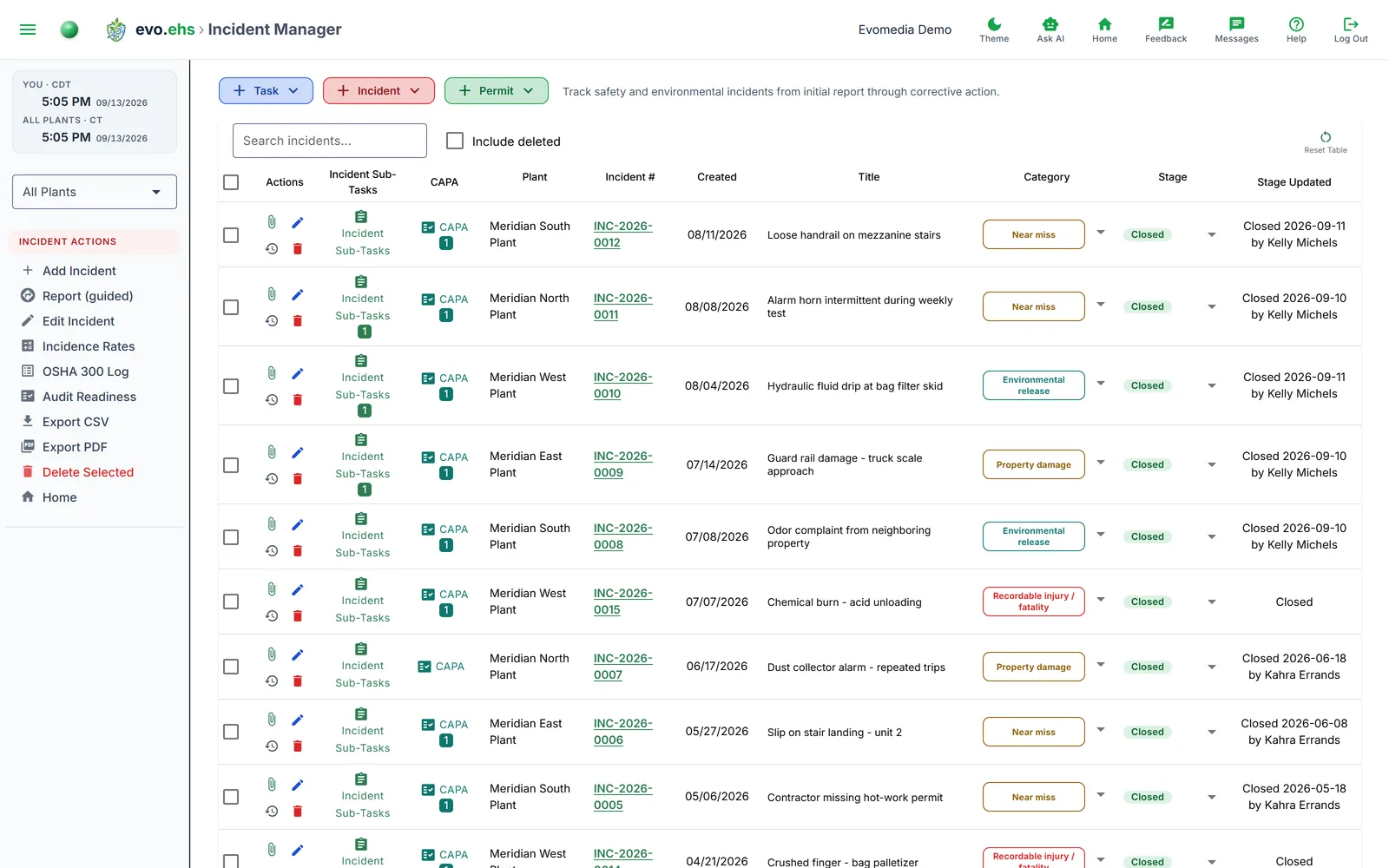 Track safety and environmental incidents from initial report through corrective action.
The Incident Table
Each row is an incident, with columns for Incident Sub-Task(s), CAPA (Corrective and Preventive Action), Incident #, Created date, Title, Category, Stage, Priority, Plant, Assigned To, Date Assigned, Occurred date, and a Narrative describing what happened. Use the search box to filter, or check Include deleted to see soft-deleted incidents.
Stage and Priority are editable directly in the table via dropdown — common stages are Open, In Review, and Closed; priorities range from Low to Critical.
The SLA column
The SLA badge tracks how the incident's clock is running: OK, then Watch once it has been open more than 24 hours, then At Risk past 72.
A red Past Due badge replaces those when the incident has missed something concrete. An incident carries no due date of its own, so it is past due when either:
- one of its CAPA actions or sub-tasks is past its own due date and not Done, or
- it is flagged as an OSHA 8-hour or 24-hour reportable event and the report is still not recorded as sent past that window.
Hover the badge — the tooltip names which of those fired, and how many items are behind it. Closing the incident clears it.
Category — what happened
Every incident is classified as one of five kinds:
| Category | What it covers |
|---|---|
| Near miss | nobody was hurt and nothing was damaged, but it could have gone otherwise |
| Property damage | equipment, structures or vehicles damaged, no injury |
| Environmental release | a spill or release to air, land or water |
| First-aid injury | treated on site and not recordable under 29 CFR 1904 |
| Recordable injury / fatality | meets the OSHA recording criteria, up to and including a death |
The first-aid / recordable split is the 1904 line, which is what makes the categories usable for the 300 log rather than only for filing.
Needs classification. Incidents created before this classification existed, or filed through the quick report without enough detail to place them, carry Needs classification instead of a category. It is not a kind of incident — it is the absence of one, shown in grey so it cannot be mistaken for an answer. Filter on it in Incident Manager or Incident Reports to find those records, and set a real category on each. Reporting a serious outcome through the guided report classifies it as a recordable injury automatically; the other four need a person, because nothing the form asks distinguishes them.
Blank form is a separate field, and it defaults from the category — see Incident Settings. Leave it on Category default unless one particular incident needs a different sheet.
Serious outcomes and OSHA duties
In the incident form, the Serious outcomes section asks plain questions — someone died, someone was admitted to a hospital, an amputation occurred, someone lost an eye. Tick what happened and the app sets the OSHA duty flags for you:
- a fatality must be reported to OSHA within 8 hours of your organization learning of it;
- an in-patient hospitalization, amputation, or loss of an eye within 24 hours.
The two duties are independent — one incident can owe both. The clock runs from when your organization learned of the event, not from when it happened, so an incident discovered late is not instantly overdue.
When OSHA does not want a report
Ticking a serious outcome does not always mean a report is owed. Under the questions is a short list of the things OSHA excuses — tick any that are true and the app removes the duty and tells you why:
- the hospital held them for tests or observation only, rather than admitting them for treatment. This is the common one, and it excuses only the hospital stay — if there was also an amputation or a lost eye, the report is still owed;
- a vehicle accident on a public street or highway — unless it happened in a construction work zone, in which case the report is owed after all, and there is a second tick to say so;
- an event on a commercial plane, train, subway or bus.
There are also two deadlines on the outcome itself. OSHA only wants a death within 30 days of the incident, and a hospitalization, amputation or eye loss within 24 hours of it. If either came later, put the date in the two fields beneath the exclusions and the duty clears. Leave them blank if you do not know — an unknown date always leaves the report owed, because the safe mistake is asking about a call you did not have to make.
None of this touches the OSHA 300 log. An event excused from the phone call can still be recordable, and the recordability section below decides that separately.
The Regulatory Flags checkboxes remain available as a manual override. The outcomes only ever add a duty; the exclusions above are the one thing that removes one, including a flag you set by hand — ticking an exclusion is a statement that the rule does not apply, so it has to be able to win.
When a duty is open, the form shows the deadline itself — "Report to OSHA by …" with the phone number (1-800-321-OSHA) and the reporting form at osha.gov/report, turning red once the window has passed.
Next to it, What OSHA will ask opens the five things the agency wants on the call, filled in from the record: your business name, the names of the employees affected, where and when it happened, a brief description, and a contact person with a phone number. Anything the record does not hold is listed as not recorded rather than left out, so you find the gap before you dial instead of during the call.
Seeing it from the list
You do not have to open a record to find out a report is owed. While the clock is running, the incident's SLA cell reads OSHA 8h or OSHA 24h in amber, and the incidents panel on Home carries the same badge in its own OSHA column. Hover either one for the deadline and the phone number.
Once the window passes the badge gives way to the red Past Due badge, which covers every missed commitment on an incident. Recording the report clears both.
Mark reported to OSHA
After you make the report, click Mark reported to OSHA in the incident form and record how it was reported (phone, area office, or online) and the confirmation number if you were given one. That entry:
- shows "Reported to OSHA {date} by {name}" on the incident,
- stops the SLA reminder emails for that report,
- clears the OSHA half of the Past Due badge, and
- writes a row in the incident's Regulatory Submission Log.
Recordable cases and the OSHA 300 log
Reporting and recording are different obligations, and the form asks them separately:
| Reporting (1904.39) | Recording (1904.7) | |
|---|---|---|
| what triggers it | death, in-patient hospitalization, amputation, loss of an eye | a much wider set — see below |
| what you do | telephone OSHA | complete a Form 301 |
| how long you have | 8 or 24 hours | 7 calendar days |
Every reportable case is also recordable; most recordable cases are not reportable.
The three questions
Under Recordable case (OSHA 300 log) the form asks:
- Work-related? (1904.5)
- New case? (1904.6)
- Whether the case involved any of the general recording criteria (1904.7): death, days away from work, restricted work or job transfer, medical treatment beyond first aid, loss of consciousness, or a significant injury or illness diagnosed by a physician or other licensed health care professional.
A case is recordable when the first two are Yes and at least one criterion applies. The form states its conclusion as you answer — "Not yet determined", "Not recordable", or "Recordable: medical treatment beyond first aid".
The first two questions default to Not determined, which is a real answer meaning nobody has assessed the case yet — deliberately different from No. A blank on a compliance record should never read as a decision that was never made.
Form 301
When a case is recordable, the form shows the Form 301 deadline — 7 calendar days from when your organization learned of the case, the same clock the reporting deadlines use. Mark Form 301 complete records that it is filled in, and by whom. The deadline is set once and never moves, so re-saving a record does not hand you a fresh week.
Privacy cases
Tick Privacy case for the case types listed in 1904.29(b)(7). The employee's name is then withheld from the 300 log and shown as "Privacy Case" instead; keep the real name on a separate confidential list.
Sidebar Actions
- Add Incident — opens the create-incident form.
- Edit Incident — opens the full edit dialog.
- Incidence Rates — jump to OSHA-style incidence rate reporting.
- Audit Readiness — jump to the audit-readiness view.
- Export CSV / Export PDF — download the current table.
- Delete Selected — soft-deletes the checked incidents.
Incident Sub-Tasks and CAPA
Each incident can have its own sub-task checklist (shown under Incident Sub-Task(s)) and a linked CAPA record for tracking the corrective and preventive actions taken in response.
CAPA actions — who did what
The CAPA panel records provenance on every action:
- Created shows the date and, beneath it, who filed the action.
- Status Updated shows the current status with when it last moved and by whom.
- Last change summarises the most recent edit of any kind — "Assigned to: — → Kahra Errands · 2026-08-29 · by Kelly Michels" — so you can see what happened without opening anything.
- The History button on each row opens the full log: every change to the action's name, status, due date, assignee or notes, newest first, each with its time and the person who made it.
A save that changes nothing writes no history entry, so the log stays readable.
Actions created before change history was added show a creation date with no name and an empty history. That is deliberate — the record of who made those edits does not exist, and a guess on a compliance record is worse than an obvious gap.
History
Click the history icon on any incident row for a full change timeline.