
Appearance
Permit Manager
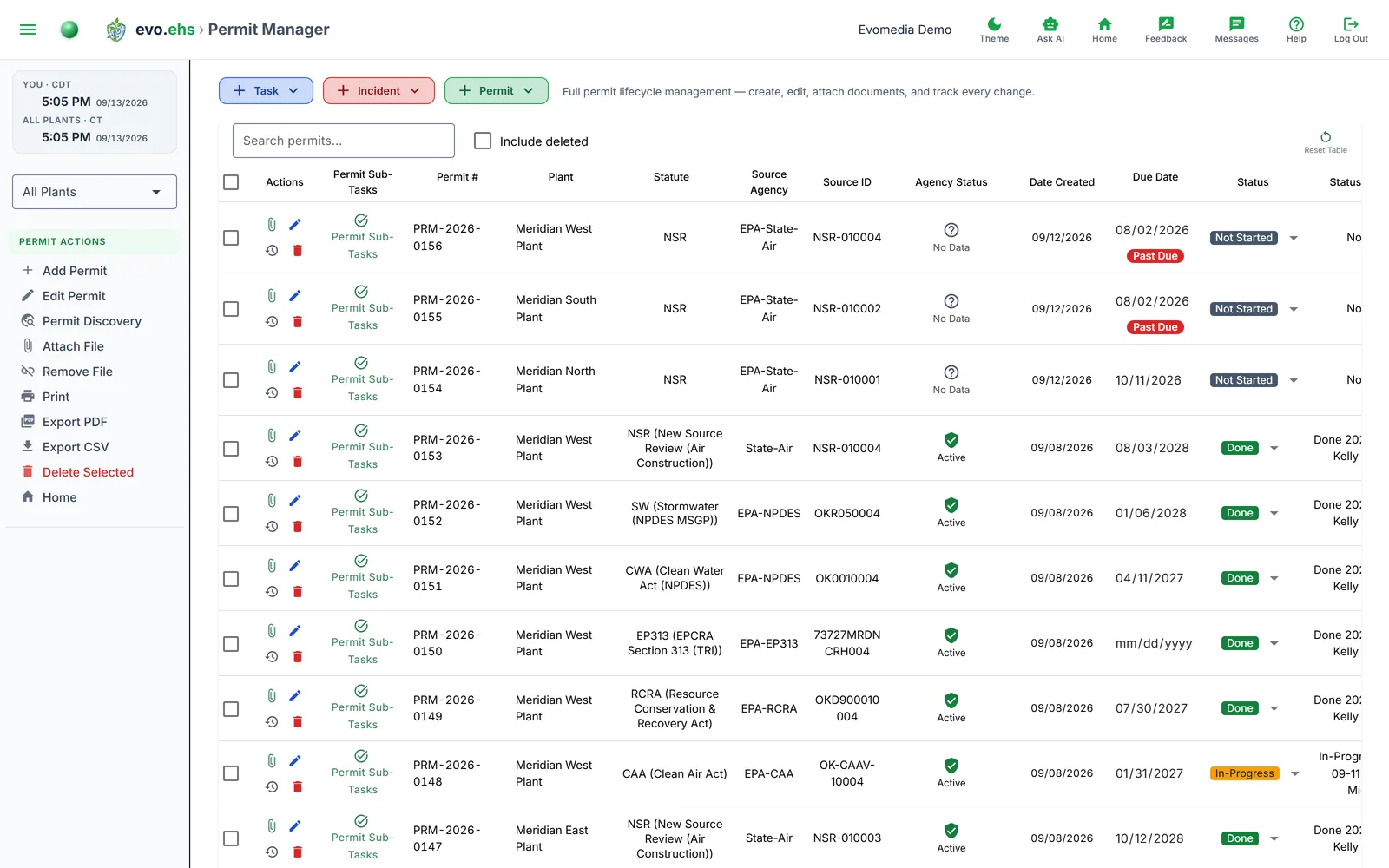 Full permit lifecycle management — create, edit, attach documents, and track every change.
The Permit Table
Each row is a permit, with columns for Permit Sub-Task(s), Permit #, Statute, Source Agency, Source ID, Agency Status, Date Created, Due Date, Status, Assigned To, Date Assigned, and Notes. Use the search box above the table to filter by keyword, or check Include deleted to see soft-deleted permits.
Every permit carries a permit number in the form PRM-2026-0042: the year it was created and a counter that starts over each year, given when the permit is created and never reused. Titles repeat (the same monthly report exists once a month); the number does not, so it is the short way to point at one permit: "can you check PRM-2026-0042?". It shows in the Permit # column, in the header of the permit's edit and sub-task dialogs, and in the CSV export, and the search box matches it. Ask AI names it beside the title and links it to the permit. Permit sub-tasks have no number of their own; they are addressed by the permit they belong to.
Status, Due Date, Assigned To, and Notes are editable directly in the table — click a cell to change it, and the change saves automatically.
Past Due
A red Past Due badge appears under the Due Date of any permit whose date has passed and that is not yet marked Done. Marking it Done clears the badge.
A recurring permit that has been completed rolls to next year's date, so it does not show as past due for the cycle it has already finished.
Sidebar Actions
- Add Permit — opens the create-permit form.
- Edit Permit — opens the full edit dialog for a selected permit.
- Permit Discovery — jumps to the Permit Discovery page to pull permits from EPA and state agencies.
- Attach File / Remove File — manage documents on a permit (PDFs, images, spreadsheets). Opening an attachment shows PDFs, photos (PNG, JPG, GIF, WebP, BMP), text and CSV files in the browser; every other type, including SVG drawings and Office documents, downloads instead so that nothing a file contains can ever run inside evo.ehs.
- Print — opens a print-friendly view of the current table.
- Export PDF / Export CSV — download the current table.
- Delete Selected — soft-deletes the checked permits (recoverable from the admin Recycle Bin).
Permit Sub-Tasks
Each permit can have its own checklist of sub-tasks, shown under the Permit Sub-Task(s) column with a completion badge. Click it to open the sub-task list for that permit.
History
Click the history icon on any permit row to see a full timeline of changes — who changed what, when, and the old vs. new value.
On a phone
Each row becomes a labelled card below 760 pixels wide, so no column is hidden. See Getting Started.