
Appearance
Training Matrix
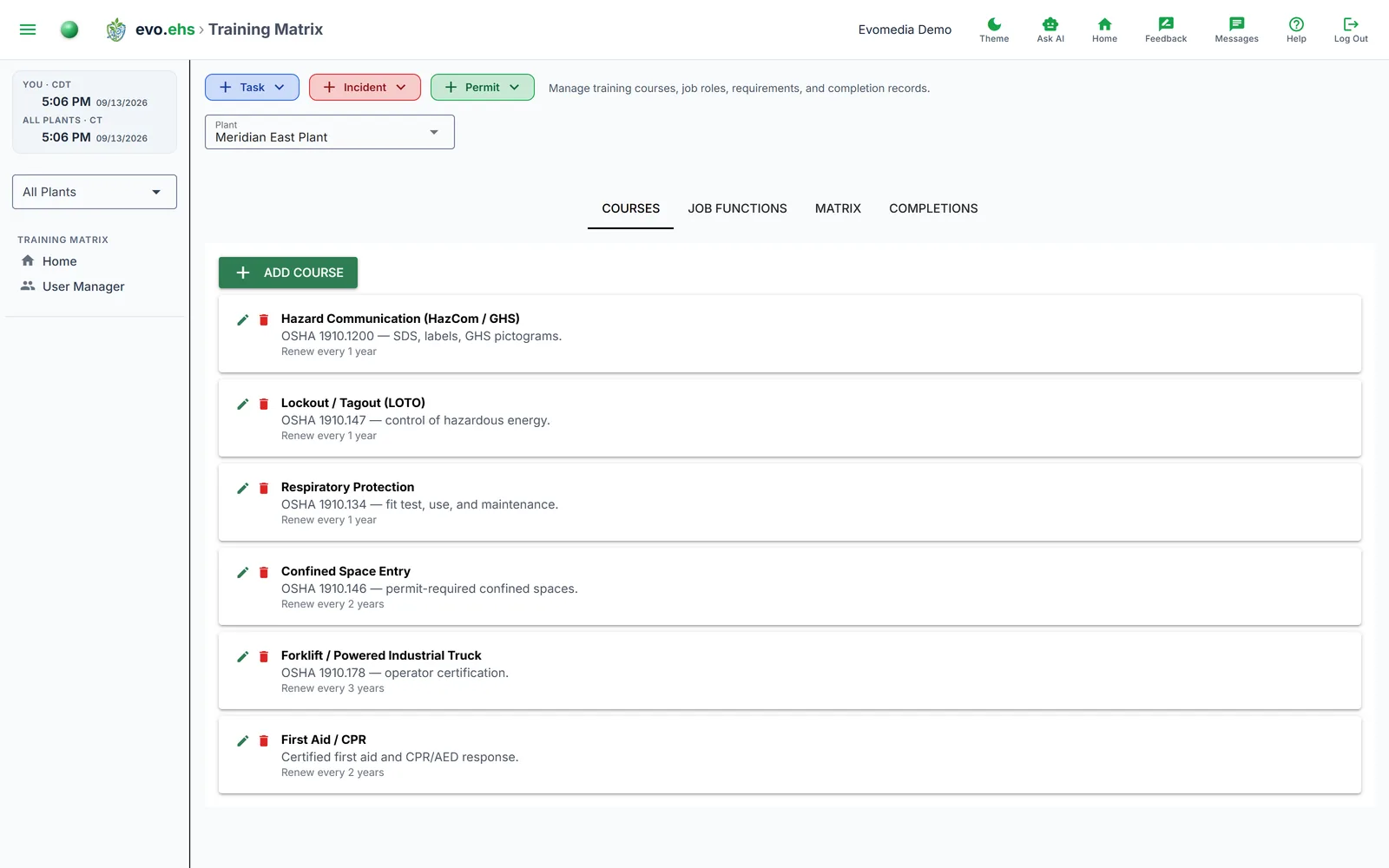
Track what training your people need, and who has done it.
Two ideas drive everything on this page:
- a course is a piece of training — "Confined Space Entry", "First Aid / CPR";
- a requirement says a course is needed by a group of people.
Define the courses, say who needs them, then record who has completed them.
The page has four tabs, and it remembers which one you were on — reloading or navigating away and back returns you to the same tab.
Courses
The training your organization offers. Add course creates one; every row has edit and delete icons on the left, the same as the other tabs.
A training row on the Compliance Score page, the Compliance Calendar or an Ask AI answer links straight to its course: the page opens on this tab, whichever one you last used, and flashes the course so you do not have to find it.
Each course has a name, an optional description, and an expiry rule:
- Tick This training expires and must be renewed, then set how long it stays valid: a number and a unit — Day, Week, Month or Year. Quick presets cover 6 months, 1 year, 2 years and 3 years.
- Leave it unticked for training that never expires.
Days and weeks are there for the short-lived permits and site inductions that lapse in a fortnight; months and years for the certifications that do not. Months and years count on the calendar, so a course taken on 31 January and valid for one month expires on 28 February, not on the 2nd or 3rd of March.
The rule is shown in plain language in the course list — "Renew every 1 year" or "Does not expire". It is also what fills in the expiry date for you when you record a completion.
Deleting a course
Deleting a course also removes its completion records and its requirements. The confirmation tells you exactly how many of each will go — and says nothing when there is nothing to lose.
Job functions
A job function is what someone does — "Plant Operator", "Maintenance Technician" — and it is what training requirements usually hang off.
These are deliberately separate from the access roles in User Manager, which control what someone can see and do in the app. A person can be an "EHS Supervisor" for permissions and a "Plant Operator" for training.
Each row shows how many people hold it, and says so plainly when nobody does — "nobody has this job function yet" — because a job function nobody holds produces nothing in the Matrix or Completions tabs.
Assigning people
Two ways, and you can use either:
- From this tab — the group icon on a row opens a list of everyone in the workspace, so you can assign many people to a job function at once. Faster when you are setting up.
- From User Manager — each user's edit dialog has a Job Function field. Better for one person joining or changing role.
Naming a job function after an access role
When you add a job function, the Name field also lists your existing access roles. Type a new name, or pick one of those — and picking one auto-assigns everyone who holds that access role to the new job function.
It only fills in people who have no job function yet; anyone who already has one keeps it, and the confirmation tells you how many of each. That way setting up training for "everyone who is an EHS Supervisor" is one step rather than a list you maintain by hand.
Matrix
Which courses a group needs.
Pick a group in Applies to, then set each course. The dropdown offers both kinds of group:
- "Plant Operator — job function"
- "EHS Supervisor — access role"
Access roles are there because "everyone who is an EHS Manager needs this" is as natural a rule as one based on job function, and the permission roles already carry job-shaped names.
Each course row toggles between two states:
| Icon | Meaning |
|---|---|
| Green check + Required badge | required for this group — click to make optional |
| Red circle | not required — click to require |
Nothing is deleted by that toggle. It is a requirement being switched on or off, which is why there is no trash icon here.
Applies to stays where you left it — changing a requirement, or reloading the page, keeps you on the same group rather than jumping back to the first one.
Someone can be in both kinds of group
A person's required courses are everything from their job function plus every access role they hold. Somebody who is a Plant Operator and an EHS Supervisor owes both sets, and a person with no job function at all still owes the courses attached to their access roles.
Completions
Who has done what, for the selected plant. Each person is listed with the courses they owe and where they stand:
| Status | Colour | Meaning |
|---|---|---|
| Current | Green | done, not expiring soon |
| Due in Xd | Amber / orange | expiring within 30 / 7 days |
| Expired | Red | past its expiry date |
| Not taken | Red | required, with no completion on record |
| No expiry | Grey | recorded, and this training does not expire |
Not taken and No expiry are easy to confuse and mean opposite things. "Not taken" is the gap — the course is required and nothing has been recorded. "No expiry" means a completion is on record and simply never lapses.
Record a completion against a person and course, and the expiry date fills in from the course's validity rule — you only set it by hand for an exception.
Completions can also be edited and deleted. A completion recorded against the wrong person or the wrong date drives a wrong expiry, so it needs to be correctable.