
Appearance
Plant Manager
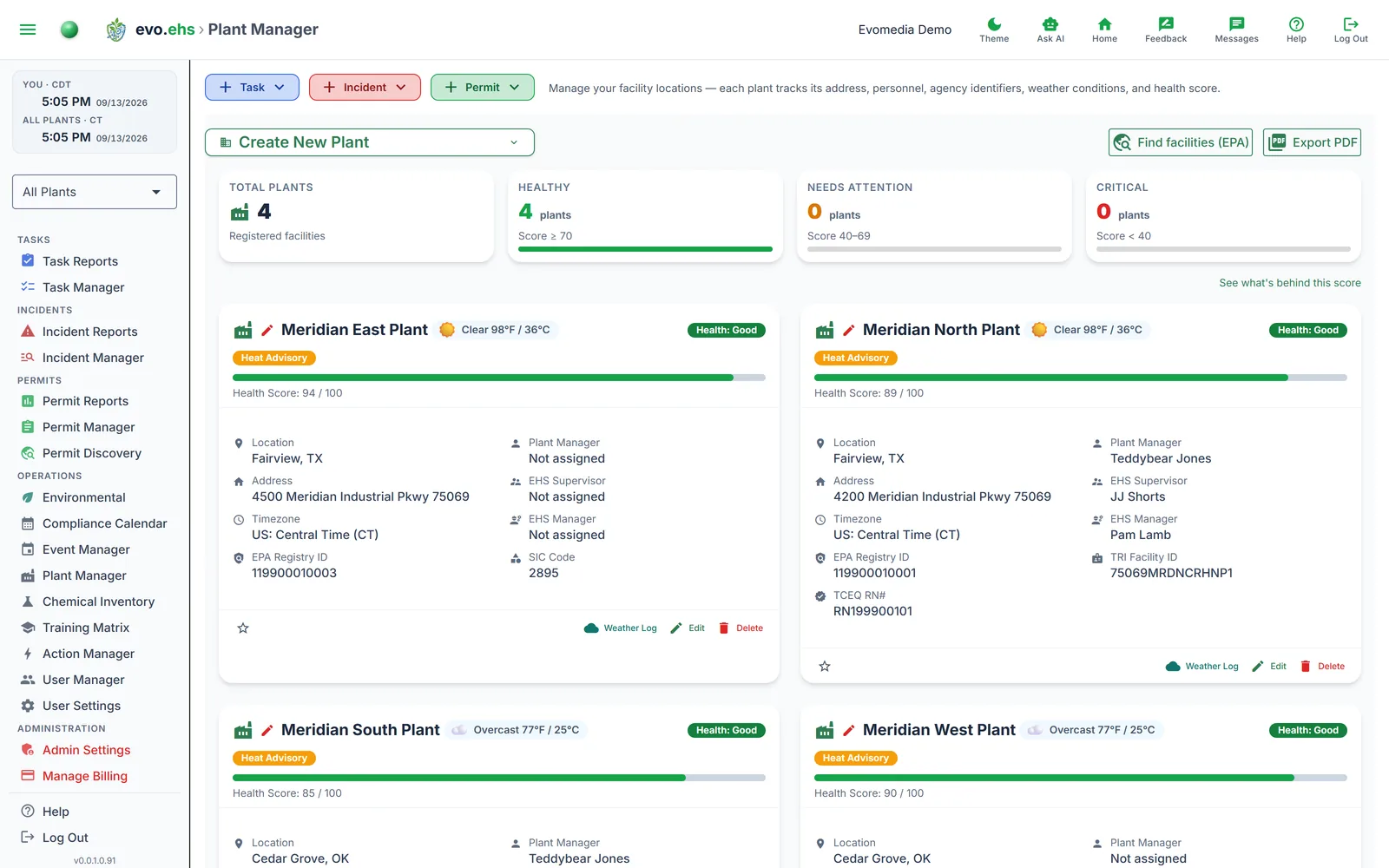 Manage your facility locations — each plant tracks its address, personnel, agency identifiers, weather conditions, and health score.
Plant Cards
Each plant is displayed as a card showing:
Name and location — city, state, address (clickable for Google Maps directions), and timezone.
Current weather — live conditions, temperature, and any active NWS alerts color-coded by severity.
Health score — the same 0–100 System Health score the Home dashboard and the Compliance Score page carry, measured over this plant's own records. Badges read Health: Good (green), Health: Needs Attention (amber), or Health: Critical (red). Critical runs below 40 and Good from 70 unless an administrator sets the bands differently in Admin Settings. A plant with nothing to measure yet shows Health: No Data Yet until its first records arrive.
Click the badge to see what is costing this plant its score: which components are losing it points, dearest first, and then the specific obligations behind them, each a link to its own record. Everything in it belongs to that plant — the workspace picture is one button away, on the Compliance Score page. A badge reading No Data Yet has nothing behind it yet and does not open.
Personnel — Plant Manager, EHS Supervisor, EHS Manager, and staff assignments.
Agency IDs — EPA Registry ID, TRI Facility ID, TCEQ RN# (Texas only), and SIC code.
Summary cards at the top show total plant count and breakdowns by health status, against those same bands. Plants without a health score yet aren't counted in the Healthy / Needs Attention / Critical breakdowns. See what's behind this score, beneath the cards, opens the Compliance Score page at the System Health section, which lists every component and its weight.
Favorites
Click the star at the bottom of a plant card to mark it as a Favorite. Favorited plants are listed first in the Home Dashboard's Plant Overview, ahead of the rest. Click the star again to remove the Favorite.
Creating a Plant
Expand the Create New Plant panel at the top of the page. Fill in the plant name (required) along with location, contact, personnel, agency IDs, industry codes, and notes. Click Create.
Adding Plants from EPA
Find facilities (EPA) opens a facility search without leaving Plant Manager. Search by company name, tick the facilities that are yours, and Add selected to Plant Manager imports them as plants — with the address, county, EPA Registry ID, and the agency IDs (TCEQ RN, TRI) looked up for you.
Each imported plant is tagged with the industries its own EPA record implies, so a company whose sites are in different industries gets each one scoped correctly. See Company Profile for how that list is set.
If a facility looks like an industry your workspace does not have, the plant is still imported and you are told which industry was left off. Adding it to the company list is an administrator action on Company Profile — that half of the search only appears there.
This is the same search as the one on Company Profile. You do not need administrator access to use it here.
Editing a Plant
Click Edit on any plant card to open the full edit dialog, which groups fields into Location, Contact, Personnel, Agency Identifiers, and Industry Codes sections.
Inline editing is also available in the table view — click any editable cell to change it directly.
TCEQ RN# Lookup
For Texas plants, click the lookup button next to the TCEQ RN# field to auto-fill it from Texas NOR / Central Registry data. The plant needs a valid 12-digit EPA Registry ID for the lookup to work.
Weather Log
Click Weather Log on any plant to view historical weather data. Filter by date range and adjust the logging interval (10–2880 minutes). The table shows UTC and local timestamps, conditions, temperature, humidity, wind, gusts, precipitation, pressure, visibility, and NWS alerts.
Export the weather log as CSV, HTML, or PDF.
Data sources
Weather data comes from the Open-Meteo API (model-based, not onsite instruments). NWS alerts come from the NOAA/NWS API (US locations only).
Deleting a Plant
Click Delete on a plant card, or select multiple plants and use Remove Selected from the sidebar. Deletions are soft-deletes — recoverable from the admin Recycle Bin.
Exporting
Use Export PDF to download a landscape-format PDF of all plants with their details.