
Appearance
Personal Settings
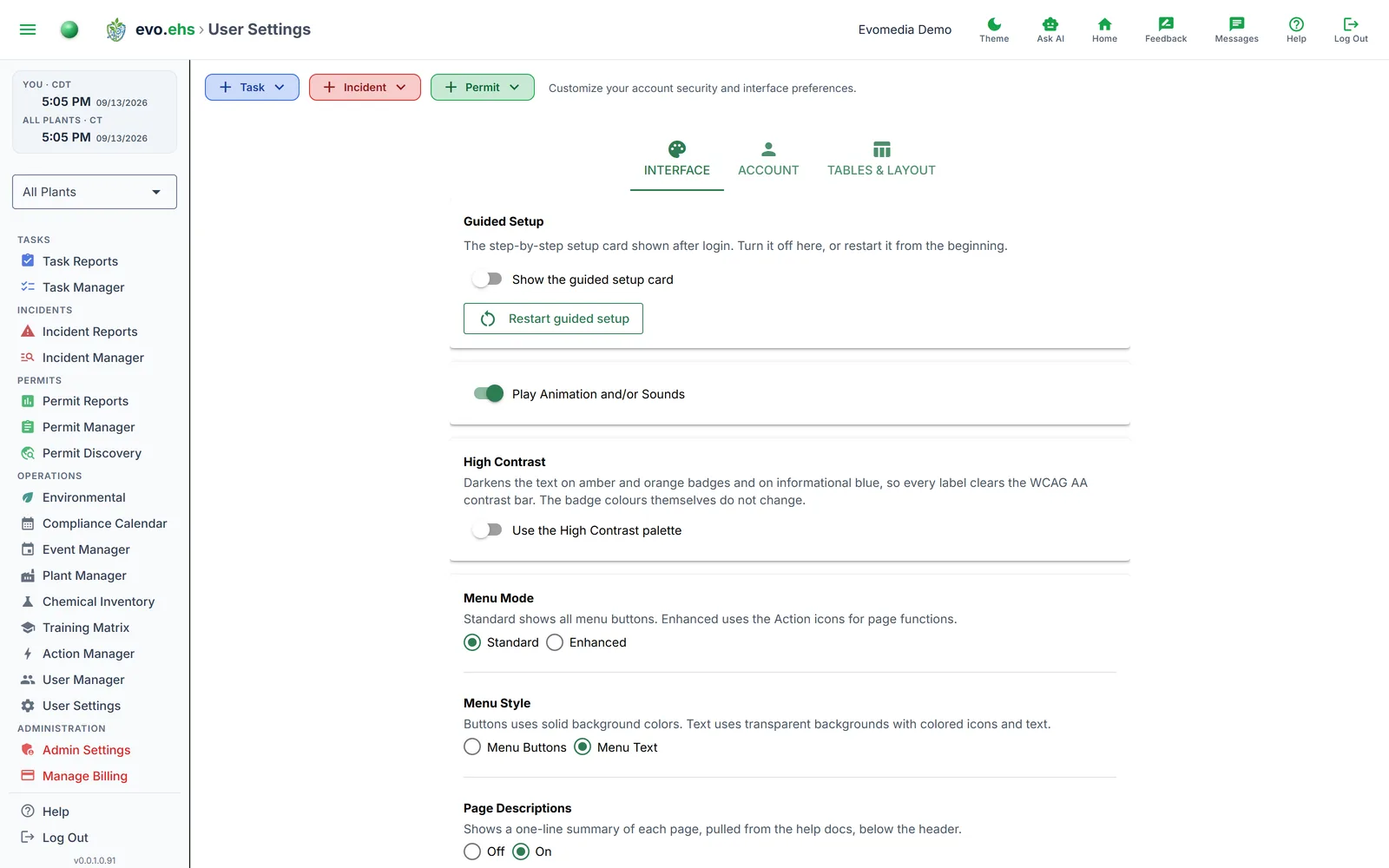 Customize your account security and interface preferences.
Account
Change Password
Enter your current password, then set a new one.
Password requirements (NIST/OWASP Standard)
Passwords must be at least 12 characters. There are deliberately no special-character requirements — no forced capitals, digits, or symbols.
This follows NIST SP 800-63B and OWASP ASVS, which found that composition rules push people toward predictable patterns like Summer2026! while blocking genuinely strong passphrases. Length and unpredictability are what protect an account.
- A short phrase of a few words works well, and spaces are allowed.
- Common and easily guessed passwords are rejected, including padded or substituted variants (
Password123!,p@ssw0rd!!). - Avoid runs of more than four characters in a row —
abcde,12345andqwertyare rejected wherever they appear. - Your password is never expired on a schedule — you're only asked to change it if there's reason to.
Passkeys
Register a passkey (Windows Hello, security key, or biometric) to sign in without a password. Every sign-in with a passkey asks the device to confirm it is you (PIN, fingerprint or face); a security key that only proves it is present is not enough on its own. Each passkey gets a nickname for identification. You can register multiple passkeys and delete any you no longer use.
Interface
- Guided Setup — the step-by-step setup card shown after login. Show the guided setup card turns it on or off; Restart guided setup starts it again from the beginning and returns you to the Home page. Finishing or dismissing the guide only hides it — you can always turn it back on here.
- Play Animation and/or Sounds — turns on or off any animation or sounds.
- High Contrast — darkens the text on the amber and orange status badges, and the informational blue used for links and hints, so every label clears the WCAG AA contrast bar. The badge colours themselves do not change: an amber badge stays amber and simply carries dark text, so a page looks the same at a glance and reads more easily up close. Off by default, per person rather than per workspace, and it follows your account across browsers and devices. The page reloads when you change it.
- Menu Mode — Standard shows all menu buttons. Enhanced adds action icons for page functions in the sidebar.
- Menu Style — Menu Buttons uses solid backgrounds. Menu Text uses transparent backgrounds with colored icons.
- Page Descriptions — shows a one-line summary of each page, pulled from this documentation, below the header. On by default.
- Menu Position — places the navigation menu and the quick-create buttons on the Left Side or Right Side of the screen, whichever suits you. The page reloads when you change it, and the choice follows your account across browsers and devices.
Tables & Layout
- Show Table Borders — toggle cell borders in permit and task tables.
- Table Column Widths — drag column header edges to resize. Click Reset Widths to restore defaults.
- Date & Time Format — choose MM/DD/YYYY or YYYY/MM/DD, and 12-hour or 24-hour time. If an administrator has forced a format, these options are locked.
The size of the quick-create ("Create New") cards is no longer set here — use the text-size buttons on an open card itself (see Home Dashboard).