Appearance
Action Manager
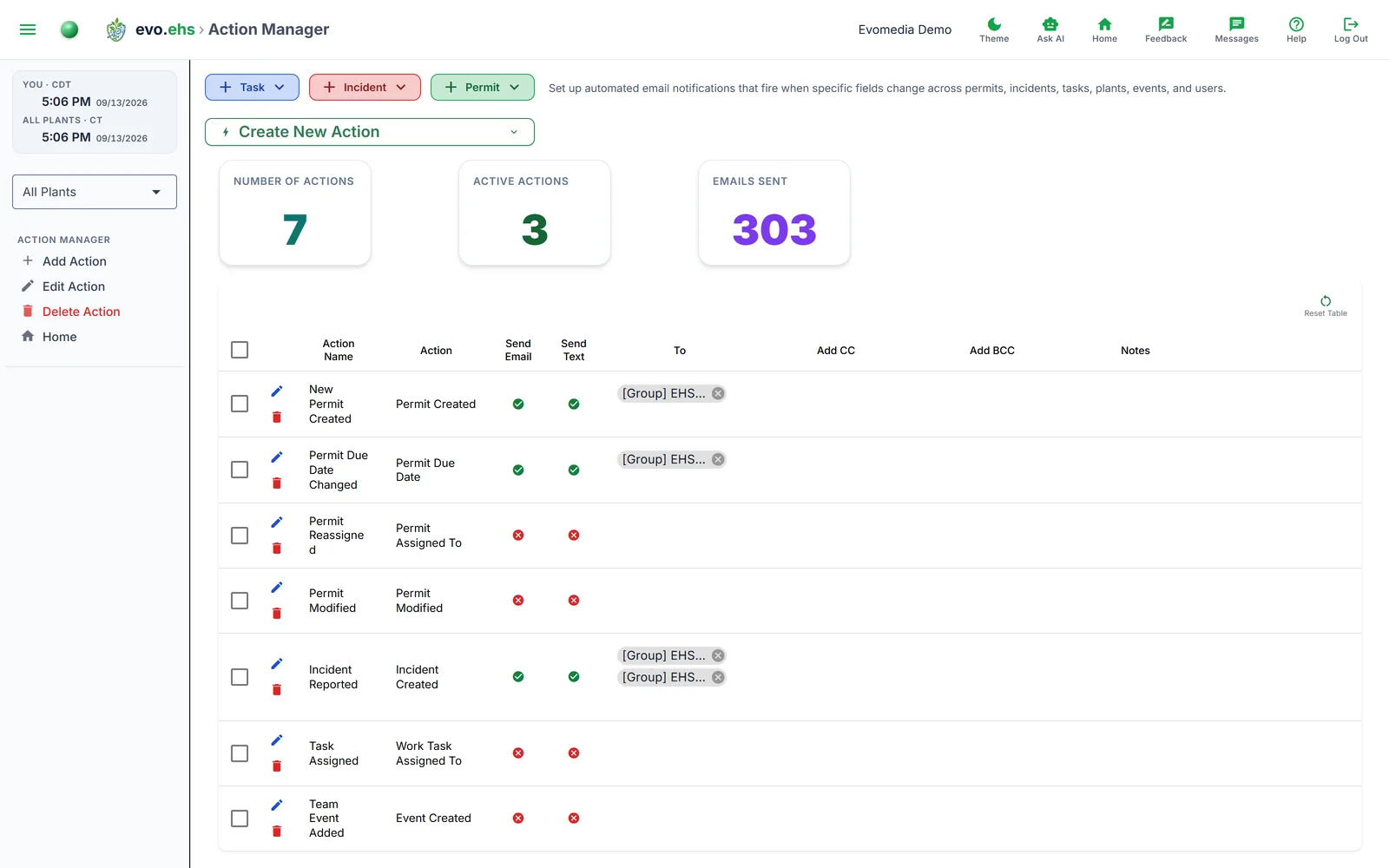 Set up automated email notifications that fire when specific fields change across permits, incidents, tasks, plants, events, and users.
How It Works
Each action watches a specific field (e.g. Permit Status, Incident Stage, Plant NWS Alert). When that field changes, the system sends an email to the configured recipients using the selected template.
What you can watch
The Action dropdown lists every field across permits, permit and incident sub-tasks, work tasks and their sub-tasks, incidents, plants, users, and calendar events. Fields are listed by their label — "Permit Status", "Incident Stage" — rather than their underlying {Permit.status} tag form.
There are two kinds of trigger:
- A field trigger fires when that one field changes. "Permit Assigned To" fires on reassignment and nothing else, which is what makes it a clean basis for "a permit was assigned to you".
- A lifecycle trigger — the entries ending in Created, Modified, or Deleted — fires on the record as a whole. "Permit Modified" (
{Permit._modified}) fires on any edit to a permit, whichever field changed; "Incident Created" fires the moment an incident is reported.
Pick a lifecycle trigger when you want to hear about all activity on a record, and a field trigger when you only care about one thing changing. Watching "Permit Modified" on a busy site can generate a lot of mail.
→ Merge Tags & Triggers reference — every selectable field, with a description of what it holds and when it fires.
Creating an Action
Expand Create New Action and fill in:
- Action Name — a label for this action.
- Action — the field to watch, chosen from the full list of triggers.
- Send Email — toggle email delivery on/off.
- To / CC / BCC — select users, role groups, or type in external email addresses.
- Notes — optional context.
The Action Table
Each row shows the action name, watched field, email toggle, recipients (To, CC, BCC), and notes. Most columns are inline-editable — toggle email, change recipients, or update notes directly in the table.
Editing and Deleting
Click the edit icon to open the full edit dialog, or the delete icon to remove an action.