
Appearance
Chemical Inventory
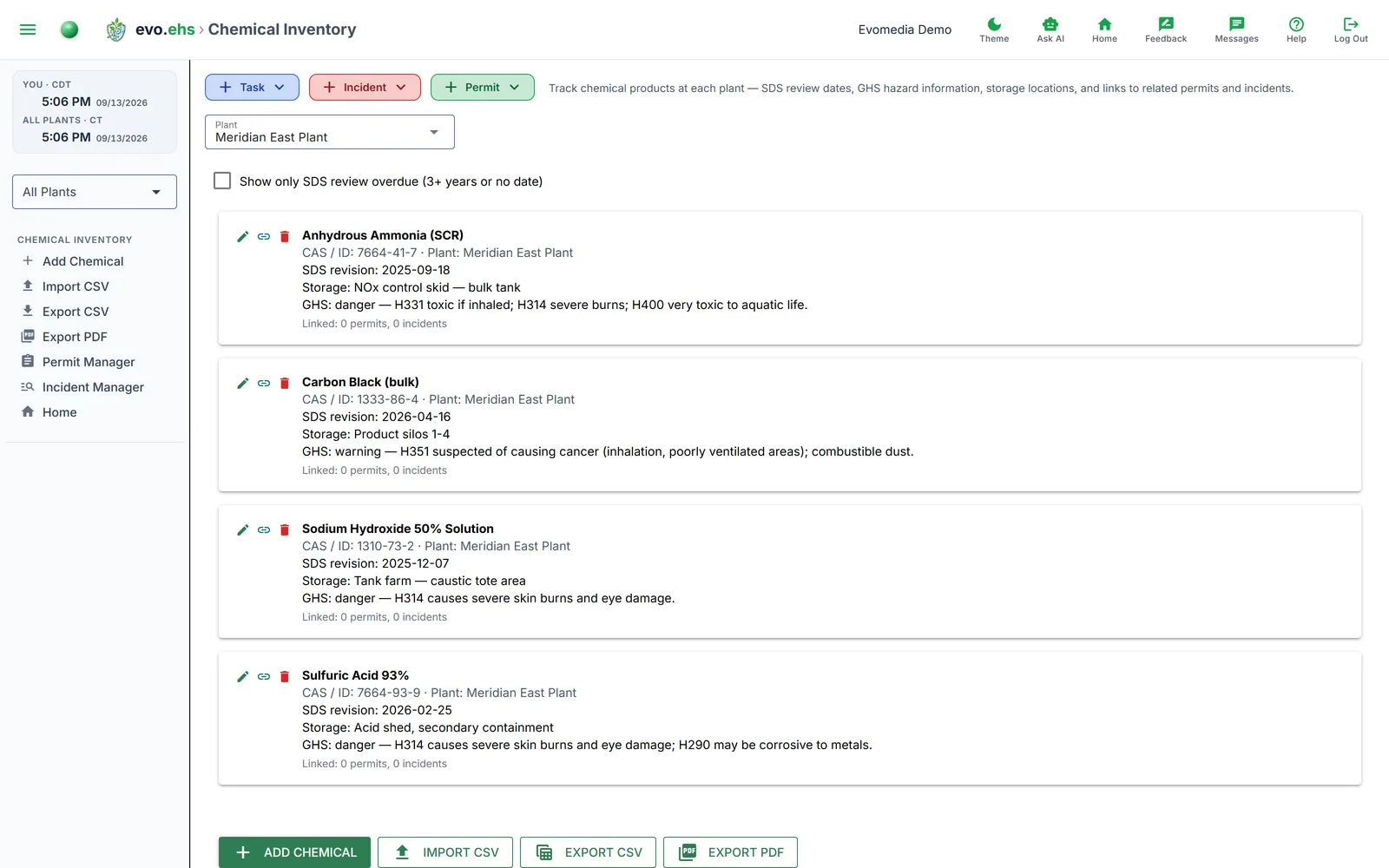
Track chemical products at each plant — SDS review dates, GHS hazard information, storage locations, and links to related permits and incidents.
Chemical Cards
Each chemical shows its name, CAS/ID, plant, SDS revision date, storage location, GHS signal word and hazard summary, and counts of linked permits and incidents. An overdue flag appears if the SDS hasn't been reviewed in 3+ years.
The catalog shows one plant at a time — pick it in the Plant box — and Show only SDS review overdue narrows that plant to the chemicals needing attention. When a link elsewhere in the app points at a chemical — from the Compliance Score page, the Compliance Calendar, or an Ask AI answer — the page opens the plant that chemical is at and flashes its card.
An empty list says which of three things happened: this plant has no chemicals while other plants do, in which case it names them with their counts and offers the switch; the overdue filter hid every row, with a control to clear it; or the workspace has no chemicals anywhere yet. A link pointing at a chemical that is no longer in the catalog says so as well, rather than leaving a page that simply looks empty.
Adding a Chemical
Click Add chemical and fill in the name (required), CAS/ID, SDS dates, storage location, GHS signal word, hazard summary, and notes.
Editing and Deleting
Each chemical card has a row of action icons on the left:
- Edit (pencil) — update the chemical's details.
- Permit / incident links (link) — see Permit & Incident Links.
- Delete (trash) — soft-delete the chemical (recoverable from the admin Recycle Bin).
Permit & Incident Links
Click the link icon on a chemical to associate it with permits and incidents at the same plant. Start typing in the Add permit or Add incident box to search by title, pick a match, and add it. Linked items appear as removable tags.
Import & Export
The toolbar (and the sidebar menu) offers bulk tools scoped to the selected plant:
- Import CSV — bulk-add or update chemicals from a spreadsheet. Click Download template CSV for the exact column layout, fill it in, and upload. Rows are matched by Name: an existing chemical is updated, a new name is added, and only the columns present in your file are changed. The importer reports how many rows were added, updated, and skipped, with a line-by-line note for any problems (e.g. a bad date).
- Export CSV — download the current plant's catalog (respecting the overdue filter) as a spreadsheet. It re-imports as-is, so export → edit → import is a valid round-trip.
- Export PDF — a print-ready catalog with the company header, SDS overdue flags, and linked-item counts.