
Appearance
Chat / Messaging
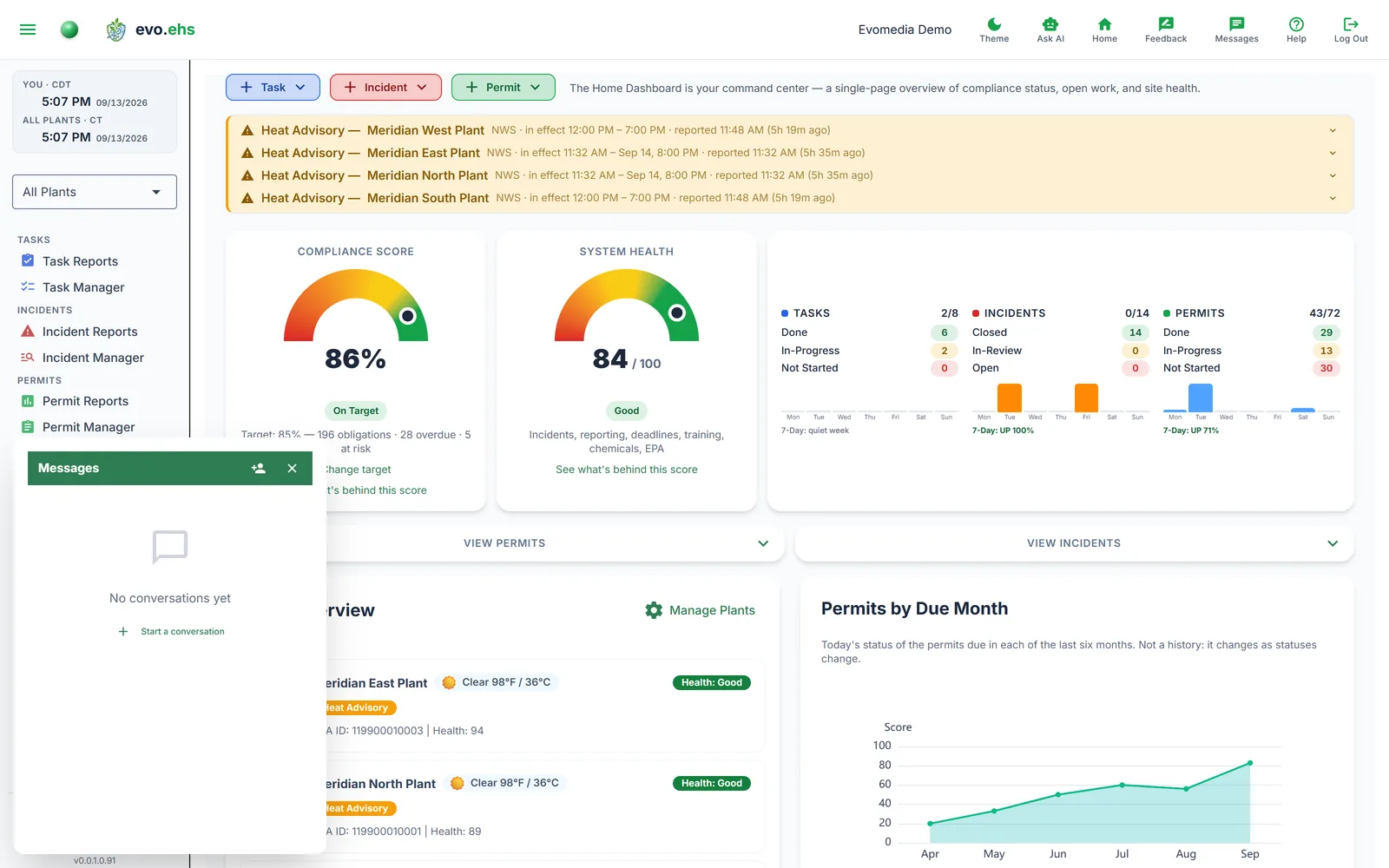 A messaging panel for talking with your team without leaving the page you're on — direct messages and group conversations, with read receipts, mentions, and email notifications.
Opening Chat
Click the chat icon in the header to open the floating message panel. An unread badge on the icon shows how many messages you haven't read.
Conversations
The conversation list shows each conversation's name, last-message preview, online status (green dot), and unread count. Use the search box to filter. Click a conversation to open its thread. Group conversations show a 👥 icon and a member count instead of a single person.
Sending Messages
Type a message and press Enter or click the send button. Your messages appear as blue bubbles, others' as gray, each with a timestamp. Date separators appear between different days.
Hover your own message to reveal a delete control. Deleting is a soft delete — the message then shows as [deleted] for everyone. You can only delete your own messages.
Read receipts
Under your most recent message you'll see Seen (direct message) or Seen by N (group). Hover it to see exactly who has read up to that message.
Direct Messages
Click the new-conversation icon and pick a user to start a one-on-one chat. Direct messages are always private between the two of you — starting a DM never opens a group you happen to share.
To bring more people into the discussion, click the add-person icon in the thread header. It starts a new group containing you, your DM partner, and the people you select — the direct message itself stays private.
Group Conversations
Creating a group
From the new-conversation screen, click Create Group, select the members, optionally give the group a name, then Create Group.
Managing a group
In a group thread, the add-person icon in the header takes you straight to adding members. The group info icon next to it opens the full panel to:
- Rename the group (any member).
- See the member list with online status.
- Add members — pick from your workspace. New members see messages from the point they were added forward, not the group's earlier history.
- Remove a member — the group's creator can remove others.
- Leave group — anyone can leave; you'll stop receiving its messages.
Membership changes and renames are recorded in the thread as small centered notices (e.g. "Alex added Jordan", "Jordan left the group").
Mentions
Type @ followed by a member's name (e.g. @Jordan Lee) to mention them. The mention appears in bold, and a mentioned message is highlighted for the person tagged so it stands out in a busy group. Mentioning someone also notifies them by email even if the conversation is otherwise quiet.
When two people share a first name, use the full name. @Jordan Lee reaches Jordan Lee only — the longer name wins, and the @Jordan inside it is not read a second time. A bare @Jordan with two Jordans in the conversation is treated as genuinely ambiguous and reaches both, which is usually what you want when you are not sure who owns something.
Notifications
In the app
The chat icon's unread badge and per-conversation unread counts update as new messages arrive.
By email
If a member is offline when you send a message, they receive an email letting them know they have an unread message (sent from your organization's configured email). These are throttled so a burst of messages doesn't flood the inbox — a direct @mention, though, always sends right away.
Mute
Open a conversation and click the notifications icon in its header to mute or unmute it. Muting stops the email notifications for that conversation; you still see its messages and unread counts in the app.
Online Status & Refresh
Green dots show who is currently online. The panel checks for new messages every few seconds while open, and less often while minimized.